
MYCURE X - How To Create HMO Partners
3 min read
This tutorial will guide you through the process of creating new HMO (Health Maintenance Organization) partnerships in the MYCURE system. By following these steps, you'll be able to establish billing and coverage relationships with health maintenance organizations for improved patient care management.
What You'll Learn
How to access HMO management settings in MYCURE
How to search for and select HMO partners
How to successfully create and save new HMO partnerships
Best practices for managing HMO relationships
Before You Begin
Ensure you have administrative privileges in MYCURE v10 and are logged into the system. You should also have the necessary HMO partner information ready for selection during the creation process.
Steps
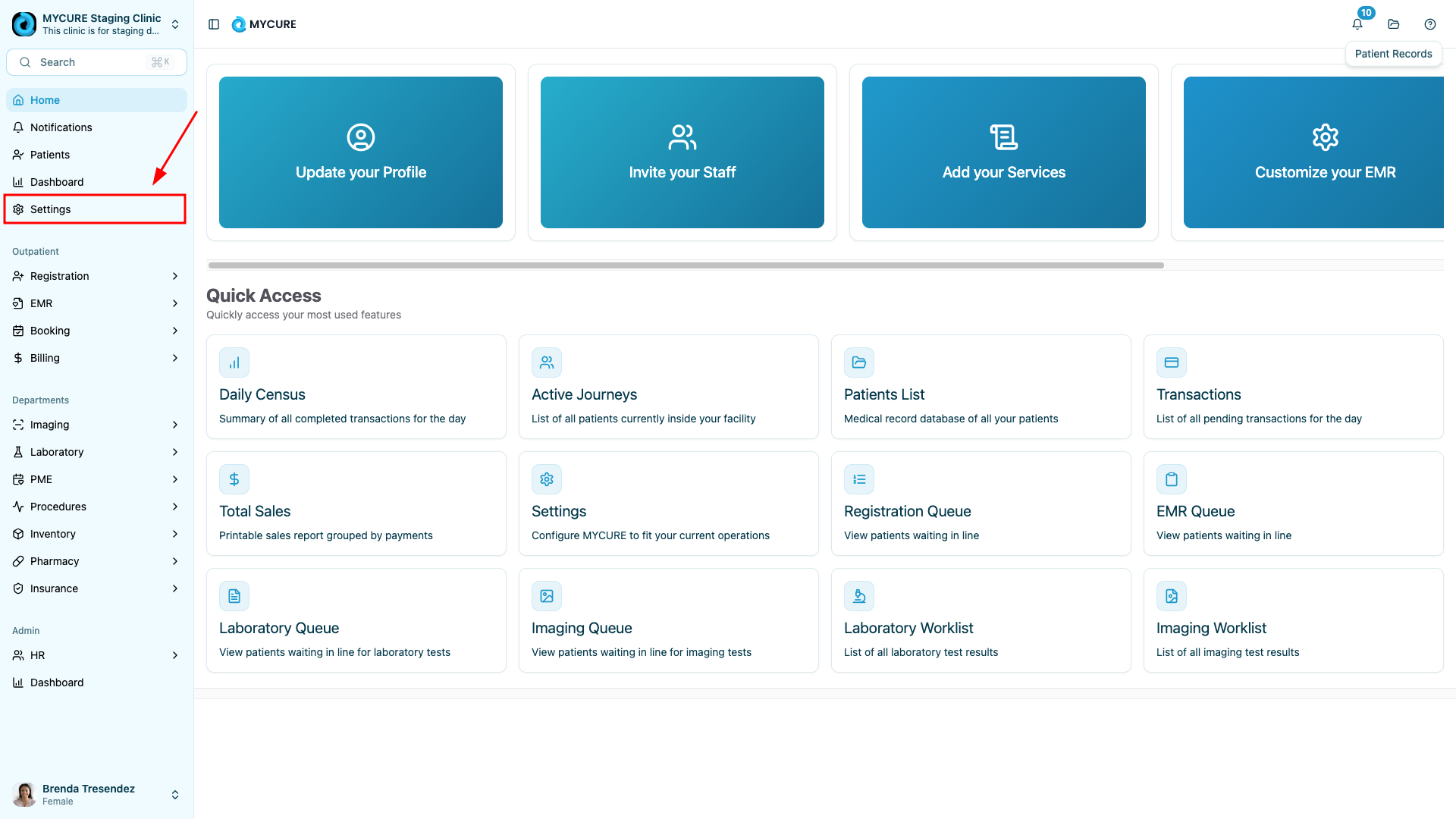
1. Navigate to Settings
Click on "Settings" from the navigation bar located at the left of your MYCURE CMS. This will open the main settings menu where you can manage various aspects of your account.
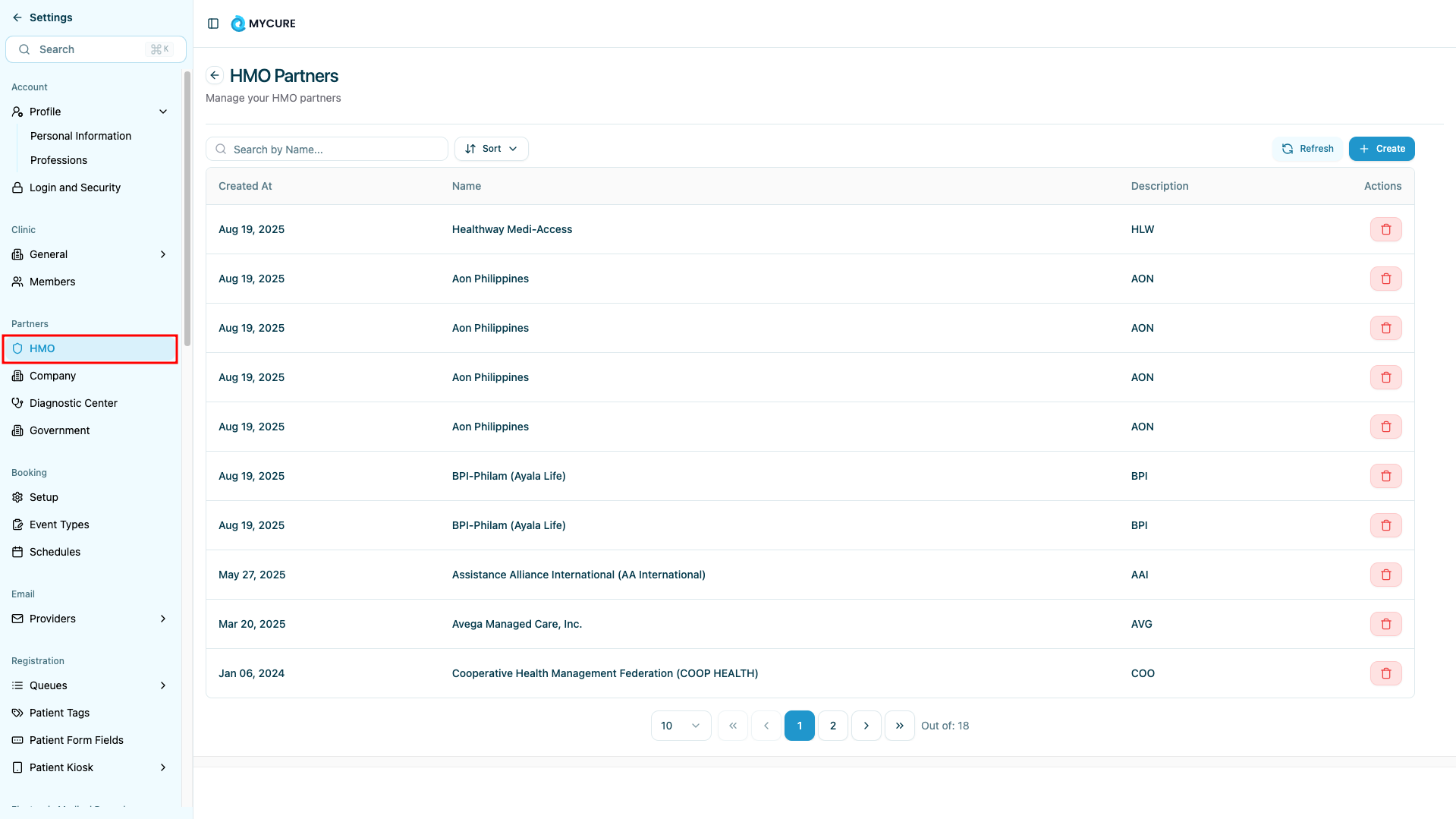
2. Access HMO Management
In the Settings menu, look for and click on the "HMO" option. This will take you to the HMO management interface where you can view existing partnerships and create new ones.
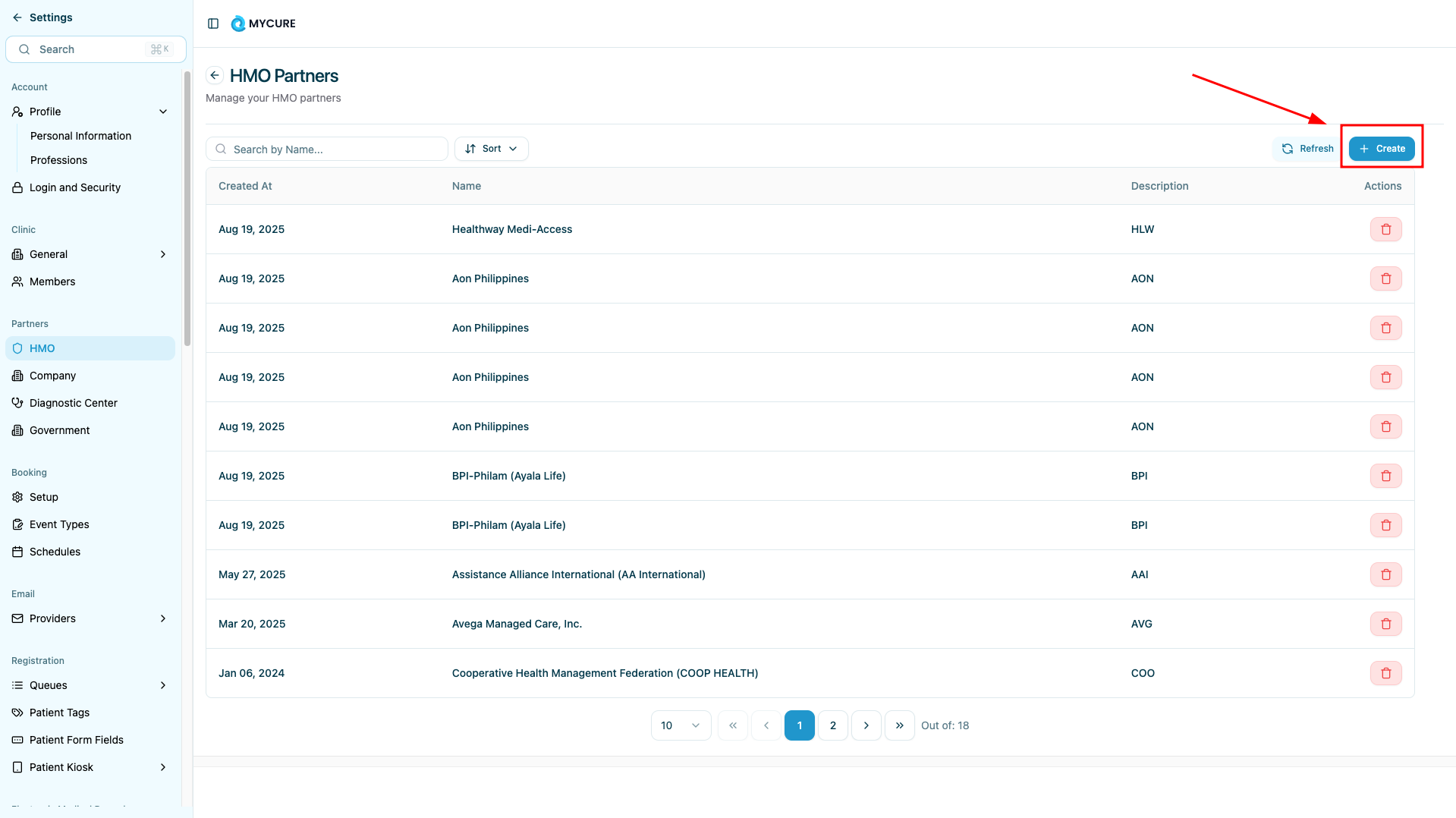
3. Start Creating a New HMO Partnership
Once in the HMO management section, locate and click the "Create" button. This will open the new HMO partnership creation form with all necessary fields and options.
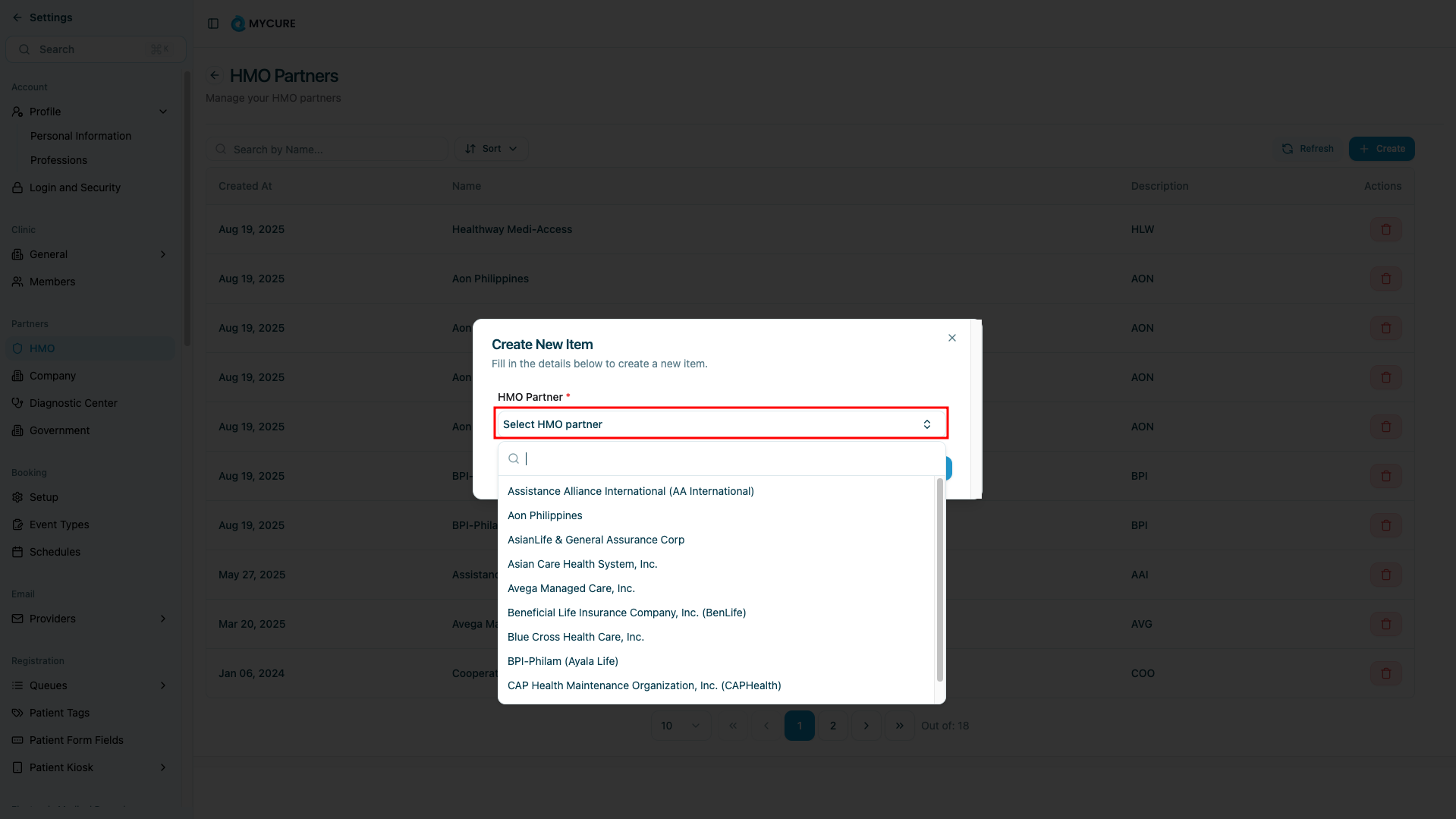
4. Search and Select HMO Partner
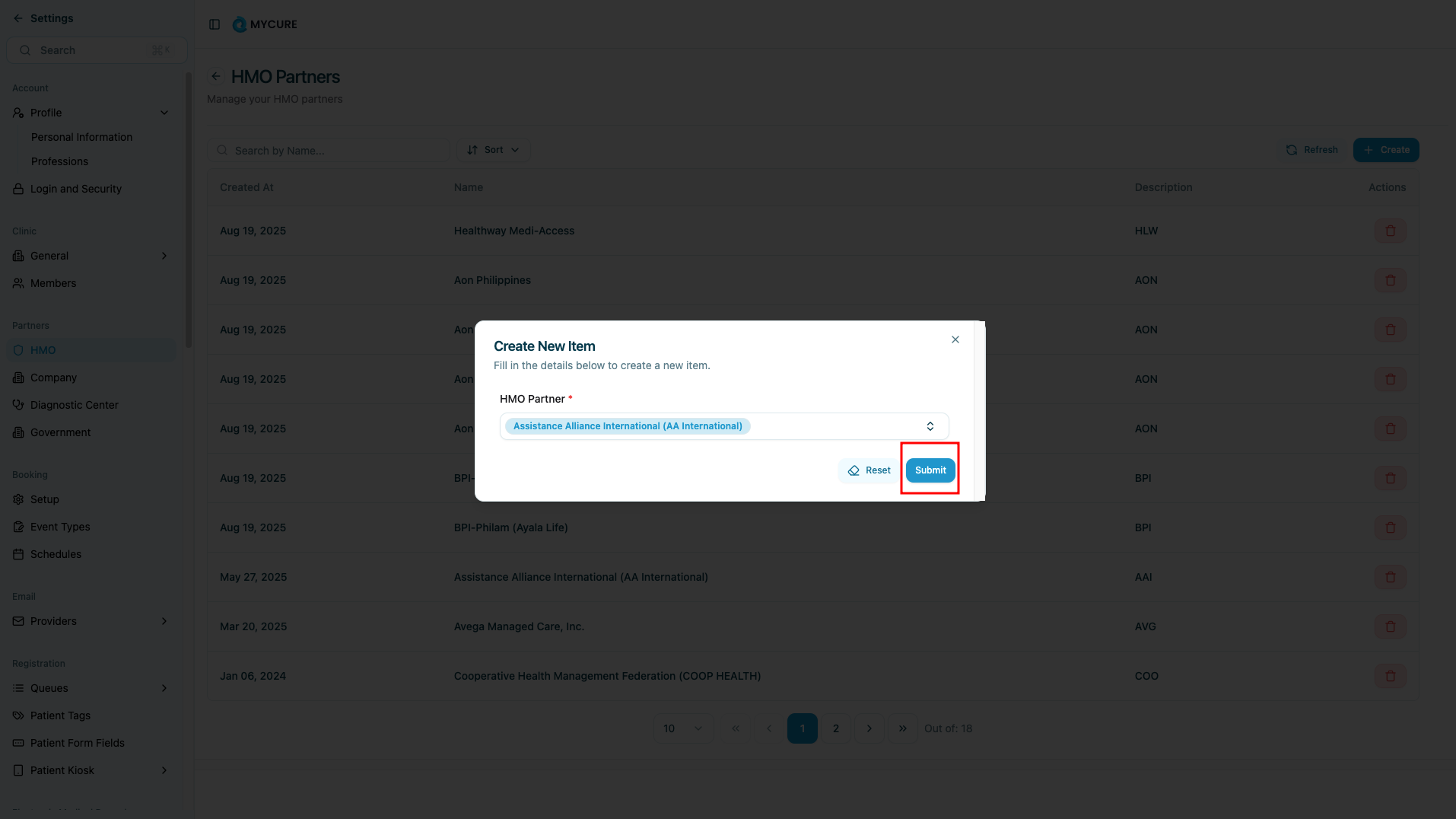
Use the search functionality to find your desired HMO partner. Type the HMO name or relevant keywords, then select the appropriate partner from the search results. Make sure to choose the correct organization to avoid billing complications.
5. Submit and Confirm
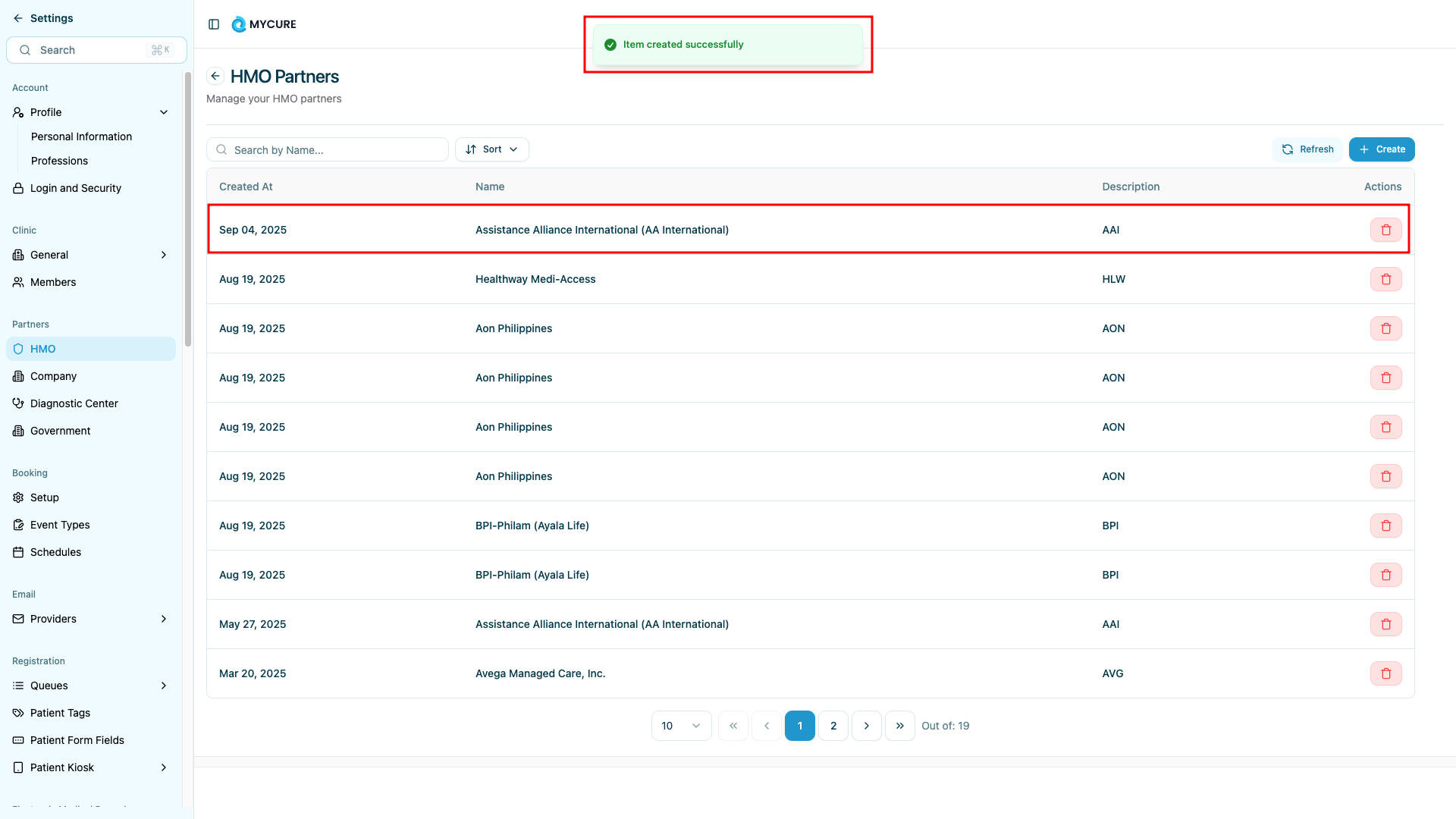
After selecting your HMO partner, review your selection and click the "Submit" button to finalize the partnership creation. The system will save the new partnership and display a confirmation message.
Tips and Common Issues
Tip:
Before creating a new HMO partnership, verify that the partnership doesn't already exist to avoid duplicates. Check the existing partnerships list first.
Note:
HMO partnerships may require additional configuration after creation, such as setting up billing codes or coverage limits. Contact your system administrator for post-creation setup requirements.
Warning:
Only create partnerships with verified and authorized HMO organizations. Incorrect partnerships can lead to billing errors and insurance claim rejections.
Troubleshooting
Cannot find Settings menu - Ensure you have administrative privileges and are properly logged into the system
HMO option not visible - Contact your system administrator to verify your access permissions for HMO management
Search returns no results - Try using different keywords or partial HMO names, or contact support if the partner should be available
Submit button not working - Verify that you have selected an HMO partner before attempting to submit the form