
MYCURE X - How To Edit Products In The Inventory System
3 min read
This tutorial guides you through the process of editing product information in the MYCURE inventory management system. You'll learn how to navigate to the products section and make changes to existing product details.
What You'll Learn
How to navigate to the Products section in the Inventory module
How to access the product editing form
How to edit and save product information
How to reset form changes if needed
Before You Begin
You need a MYCURE account with inventory management permissions
Make sure you're using MYCURE v10
You should know which product requires updates and what information needs to be changed
Steps
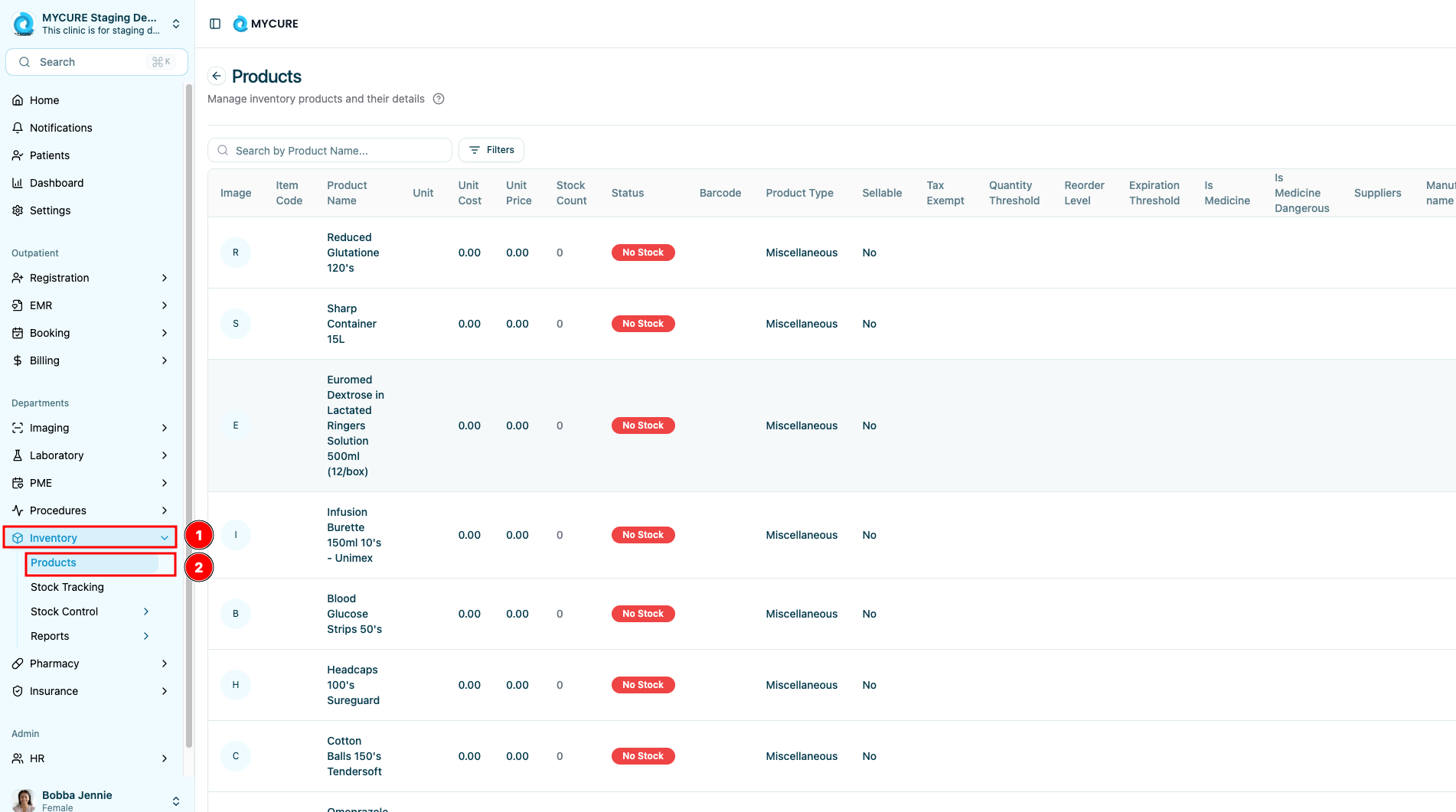
1. Navigate to the Inventory Module
Click on the "Inventory" option in the main navigation bar. This will take you to the inventory management section where you can access various inventory-related features. Click on the "Products" option in the inventory section. This will display a list of all products currently in the inventory system.
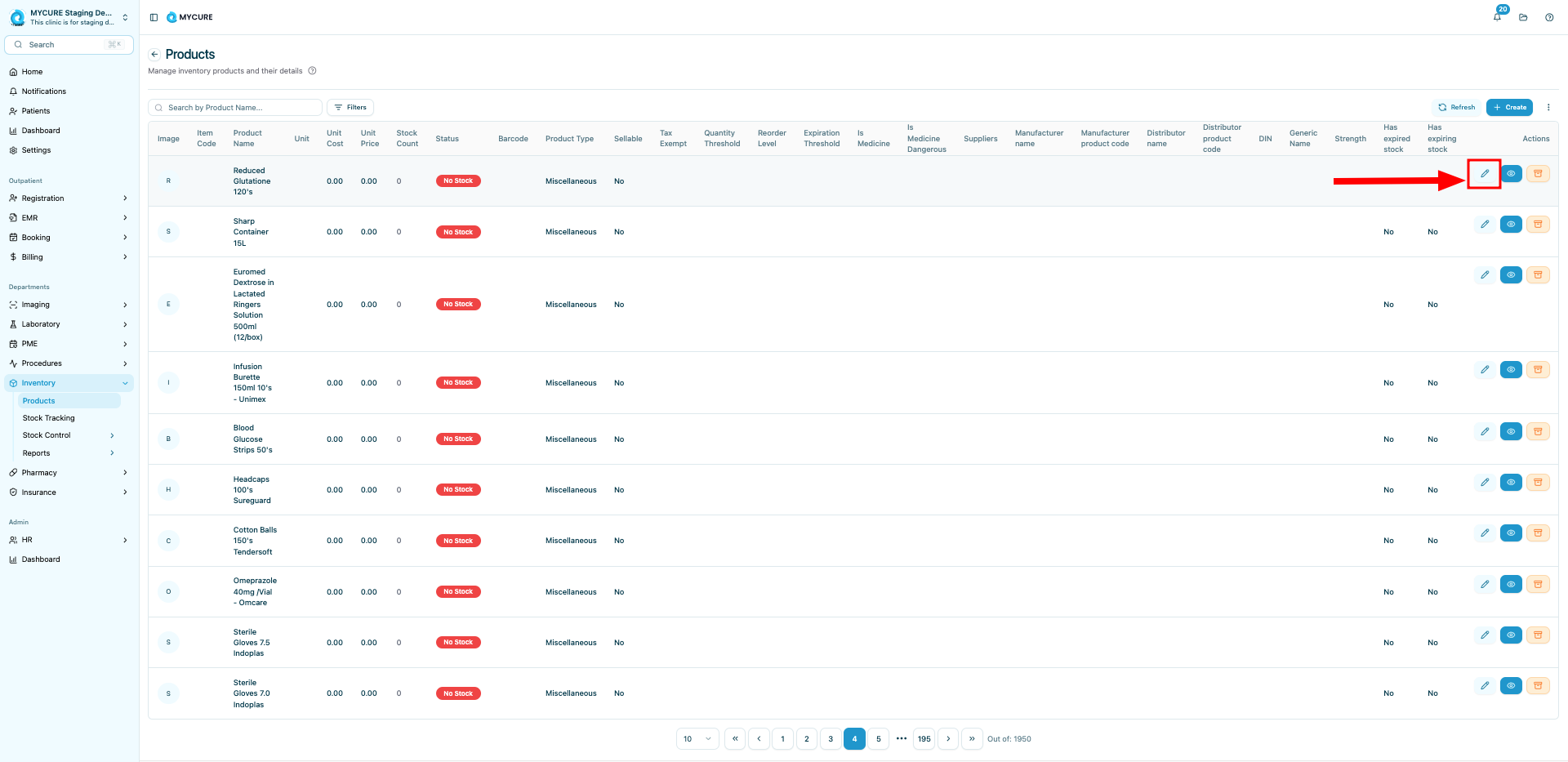
2. Find the Product to Edit
In the products listing table, locate the product you wish to edit. Each product has an "Actions" column on the right-most side of the table. In the Actions column for your product, click on the Edit button represented by a pencil icon.
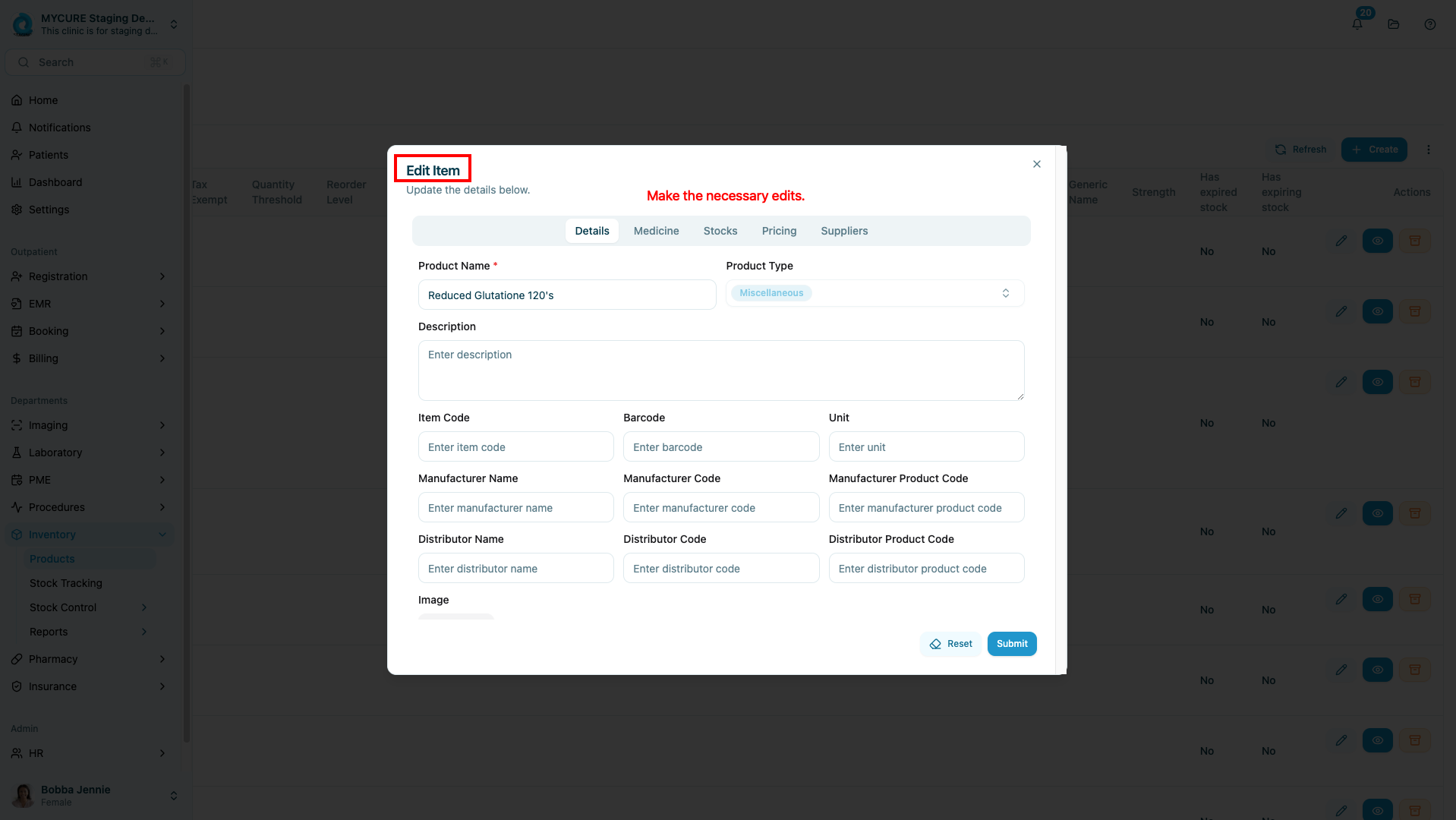
3. Update Product Information
The edit form will open with the current product information already filled in. Make the necessary changes to any of the product fields that need updating.
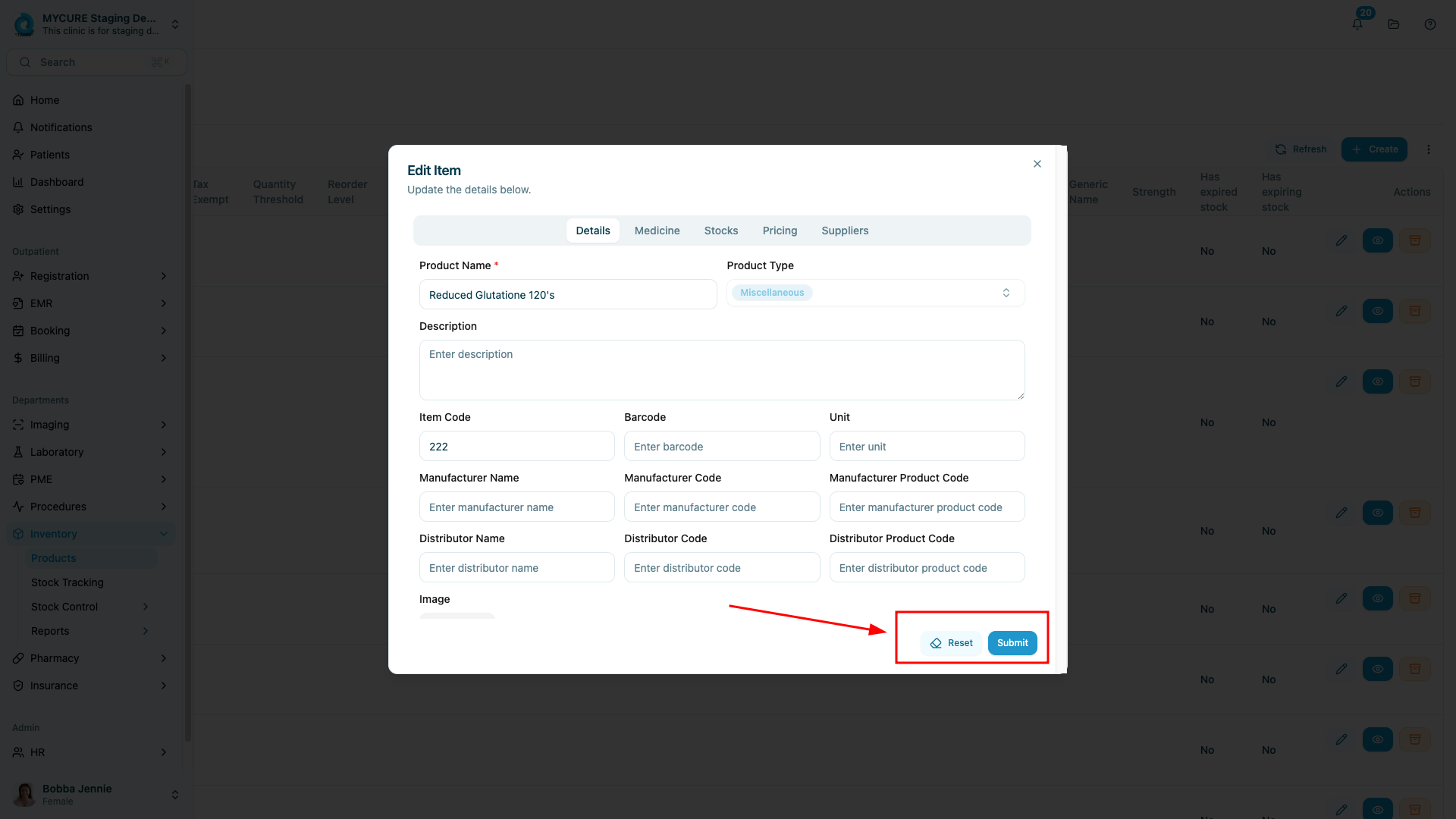
4. Save or Reset Changes
After making your changes, you have two options:
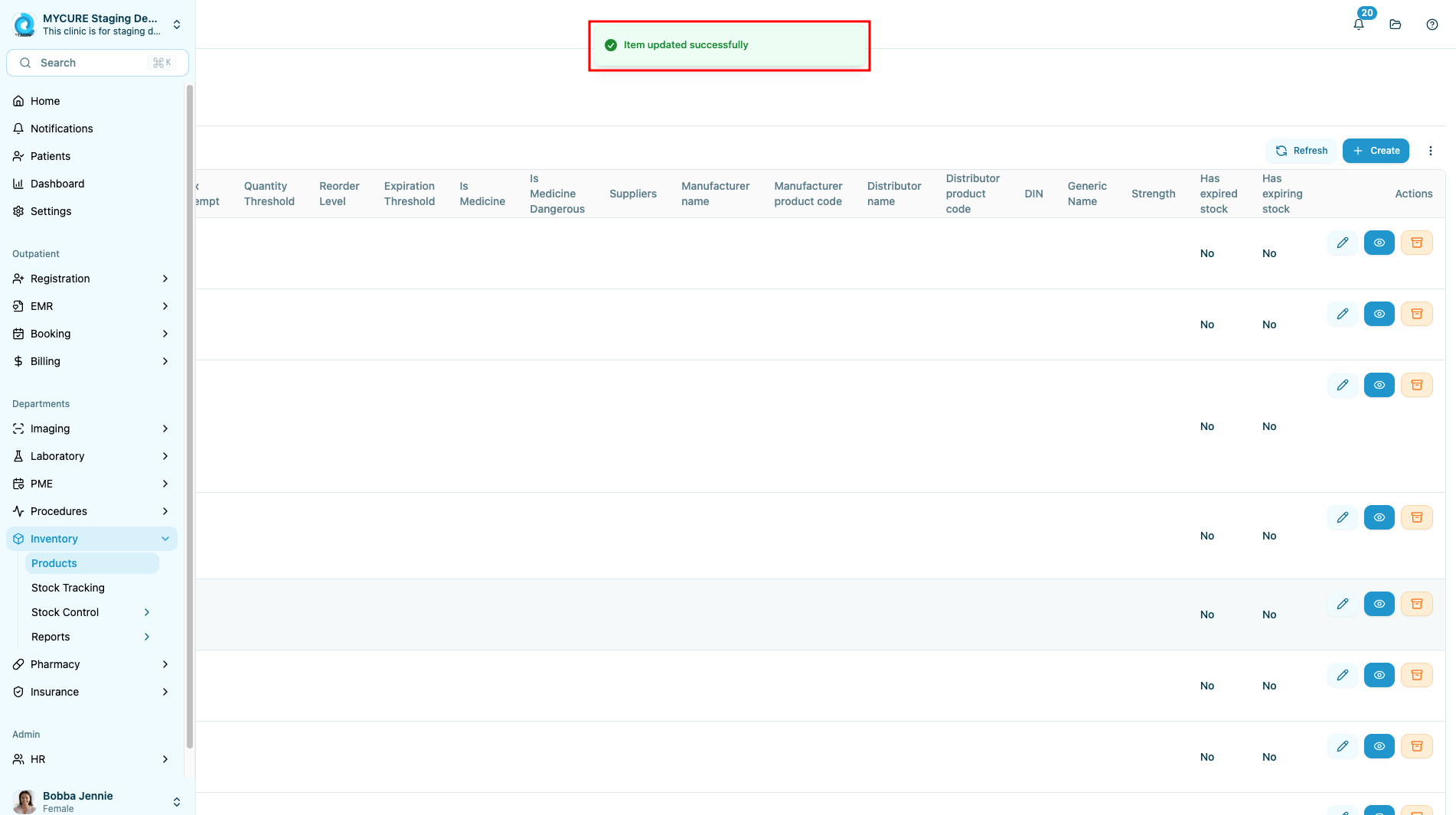
Click "Submit" to save all your changes
Click "Reset" to discard changes and revert to the original values
Tips and Common Issues
Tip:
Use the search function at the top of the Products listing to quickly find the product you need to edit, especially if you have a large inventory.
Note:
All product edits are recorded in the system audit log. The history of changes can be viewed by administrators.
Warning:
Be careful when editing product codes or SKUs. Changing these values may affect integration with other systems or reports.
Troubleshooting
Changes not saving - Make sure you click "Submit" not "Reset" and check that all required fields are completed
Edit option not visible - You may not have the correct permissions; contact your system administrator
Form validation errors - Check that all entries meet the required format (e.g., numbers for price fields, text within character limits)