
MYCURE X - How To Postpone A Patient In The Laboratory Queue
3 min read
This tutorial explains how to postpone patients in the laboratory queue using MYCURE v10. This feature helps laboratory staff manage scheduling changes when patients need to be temporarily removed from the active queue.
What You'll Learn
How to navigate to the Laboratory Queue section
How to select and postpone a patient in the queue
How to document reasons for postponement
Before You Begin
You need a MYCURE v10 account with laboratory staff permissions
You should be logged into your MYCURE account
You should have at least one patient in the laboratory queue
Steps
1. Navigate to the Laboratory Queue
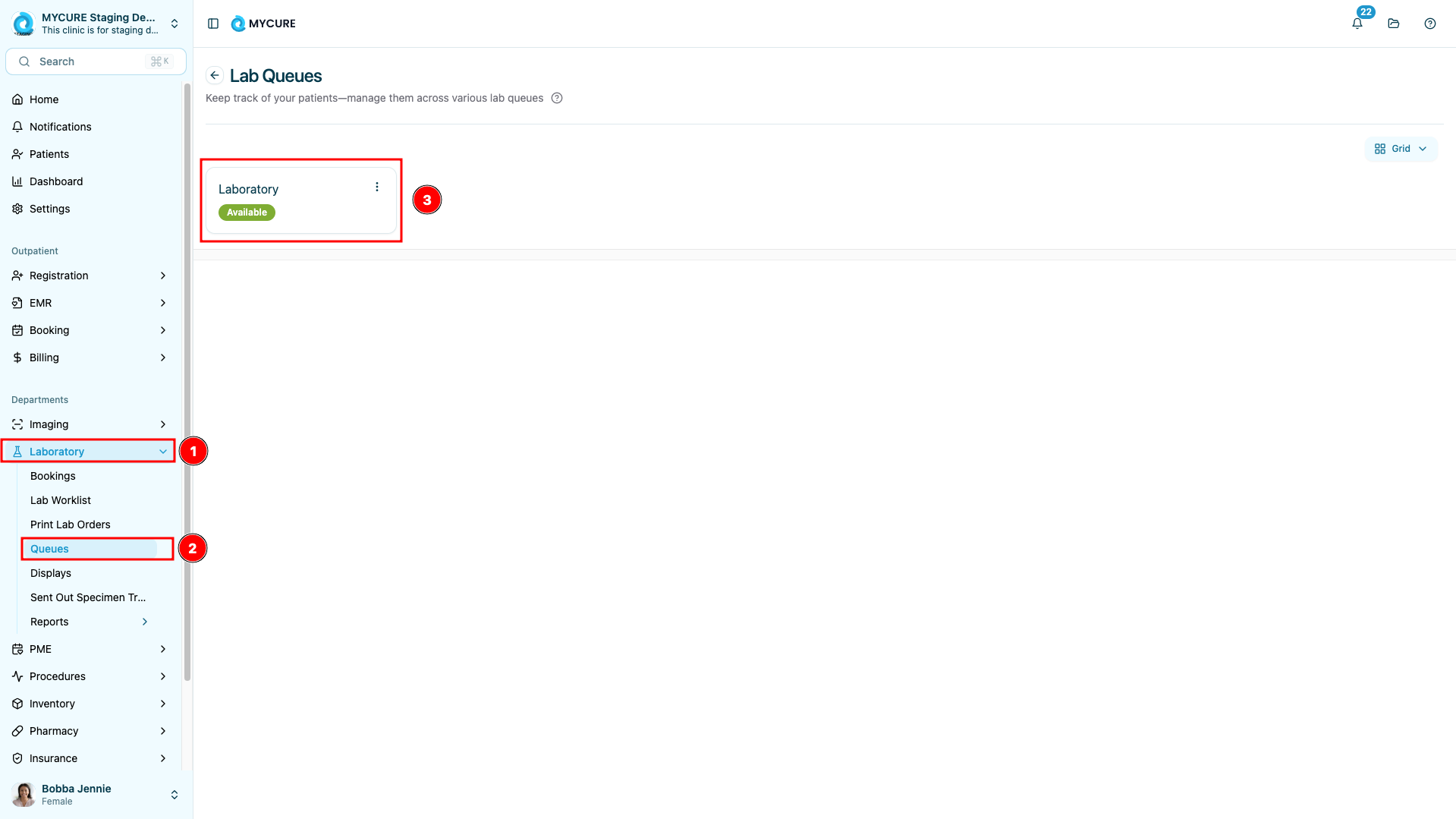
From your MYCURE dashboard, click on "Laboratory" in the main navigation bar at the top of the screen. Then, click on "Queues" from the laboratory module menu and select a queue. This will display the current list of patients waiting in the laboratory queue.
2. Select a Patient to Postpone
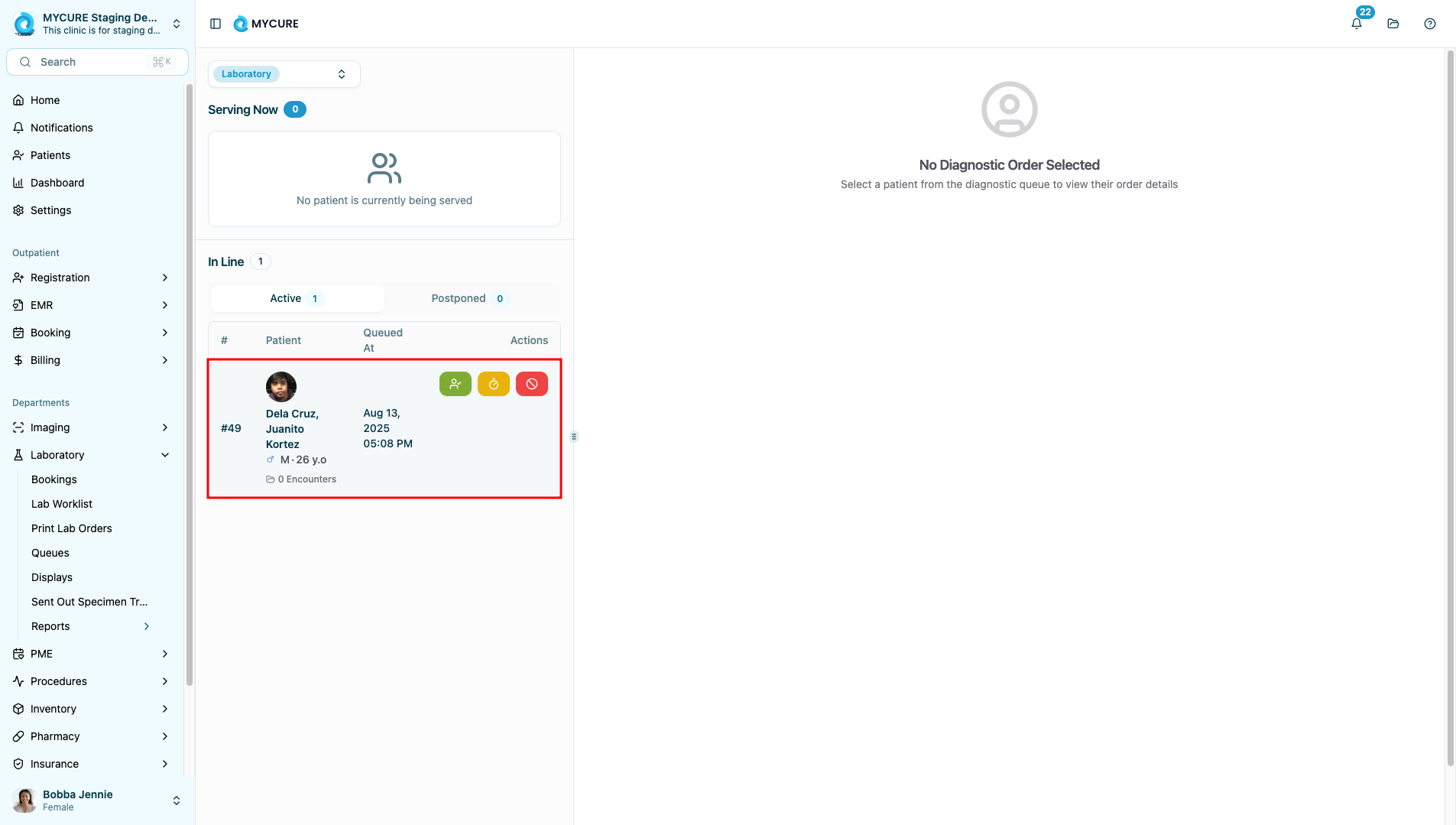
In the laboratory queue list, locate and click on the patient record you need to postpone. The selected patient's row should become highlighted to indicate it has been selected.
3. Access the Postpone Option
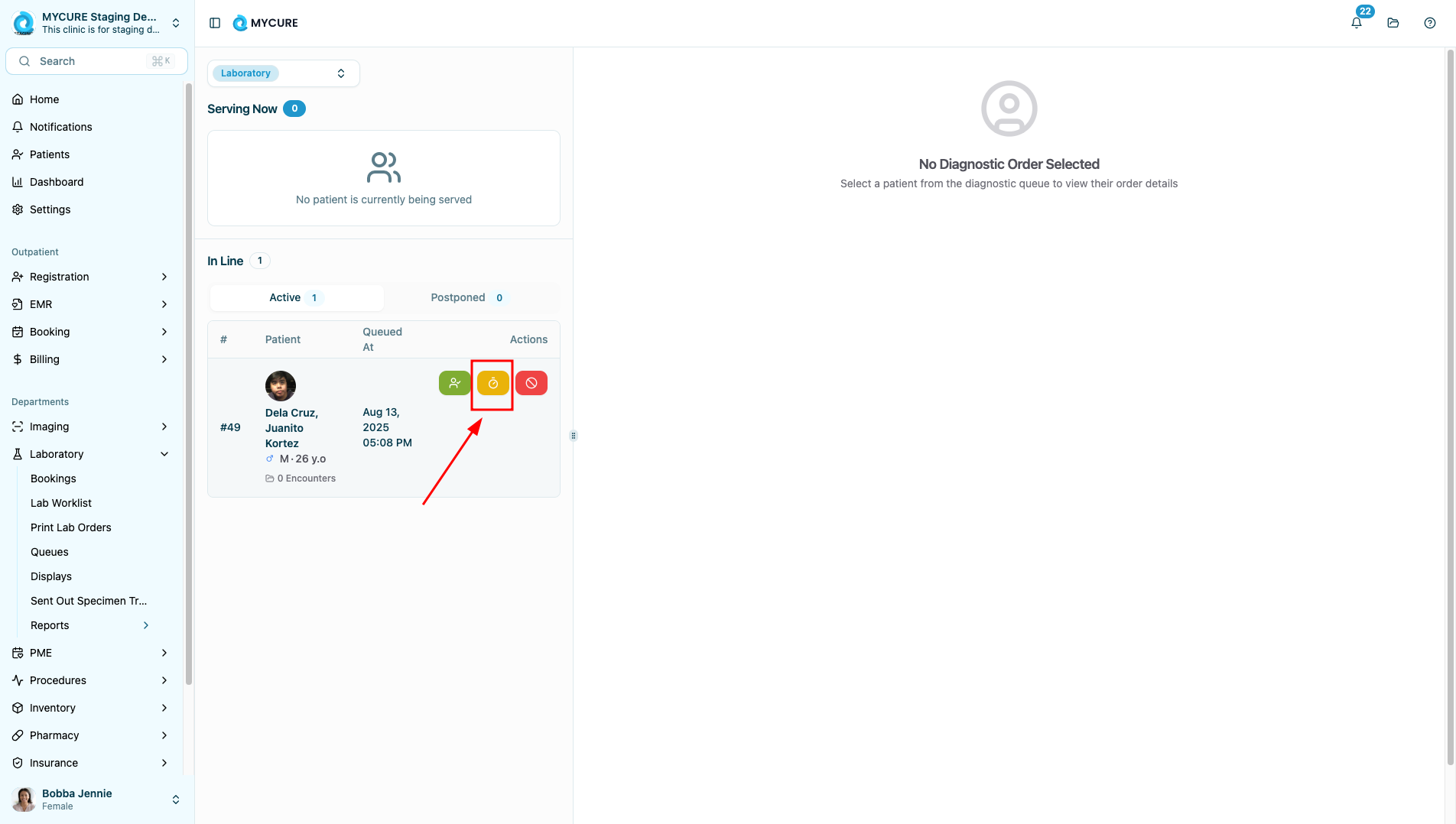
Look for the "Actions" column on the patient card and click the yellow Postpone button represented by a clock icon.
4. Add a Reason
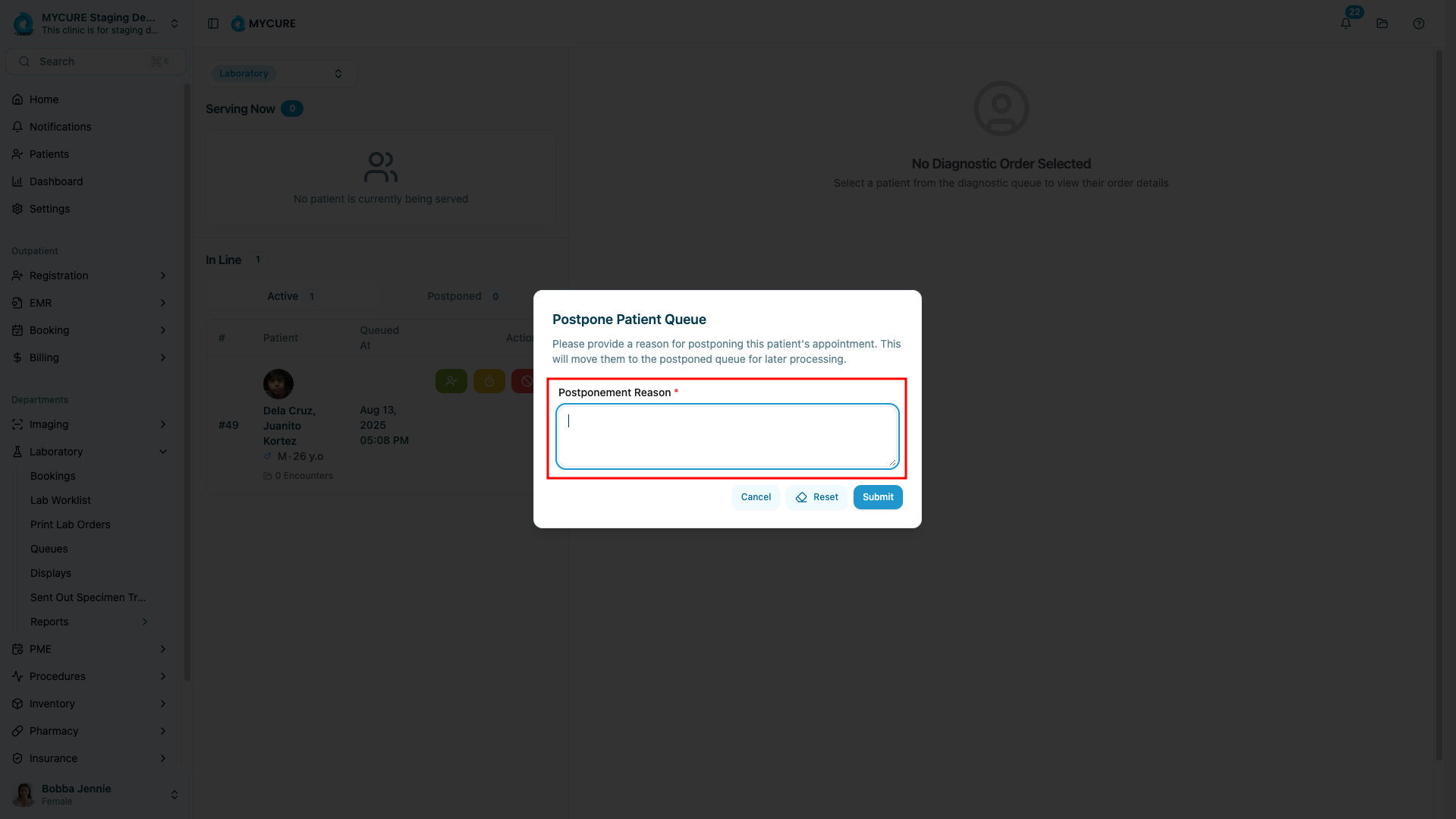
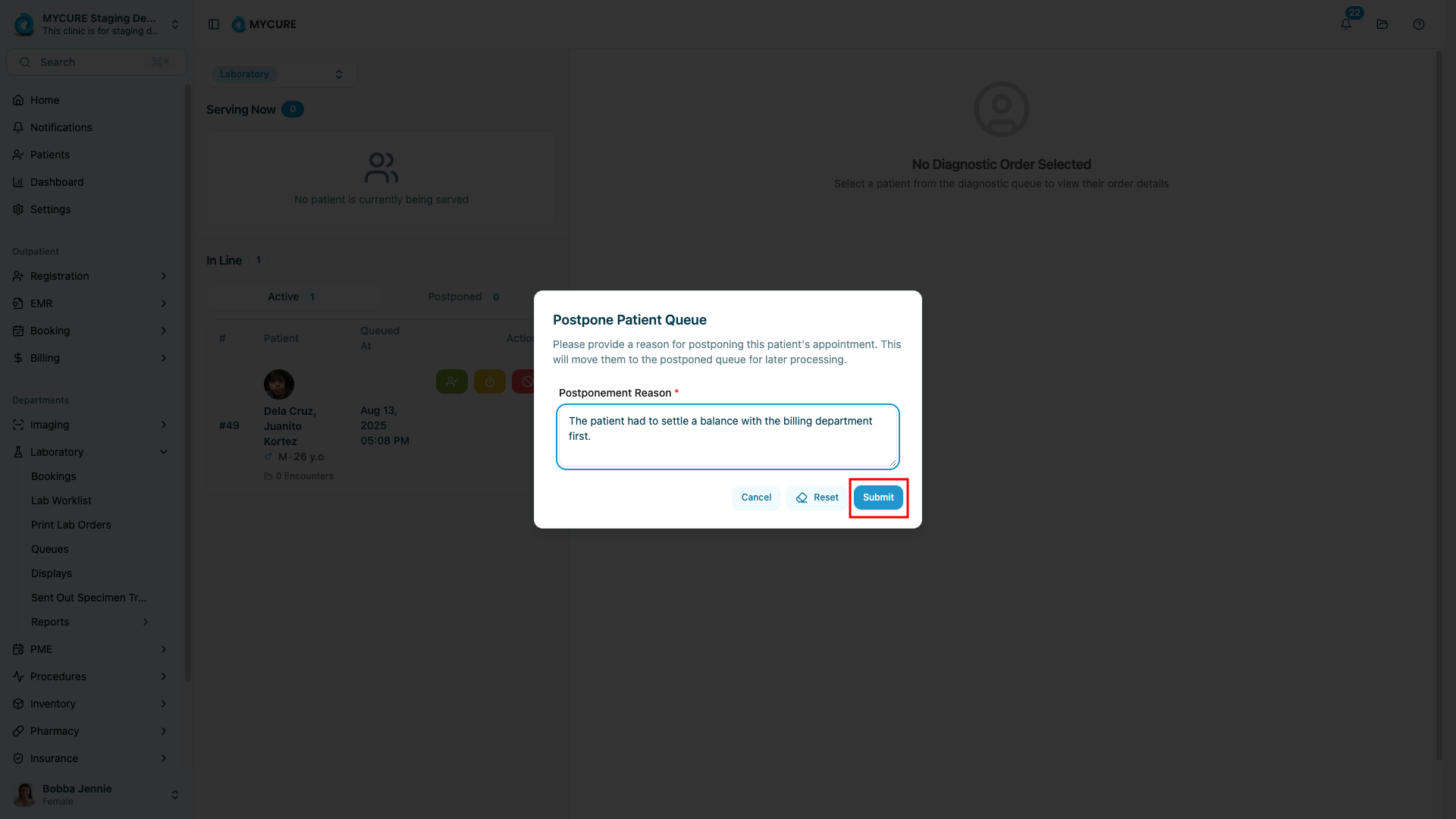
In the postponement dialog box, you'll see a text field labeled "Postponement Reason". Input the reason for postponement here as this is a required field to proceed.
5. Confirm the Postponement
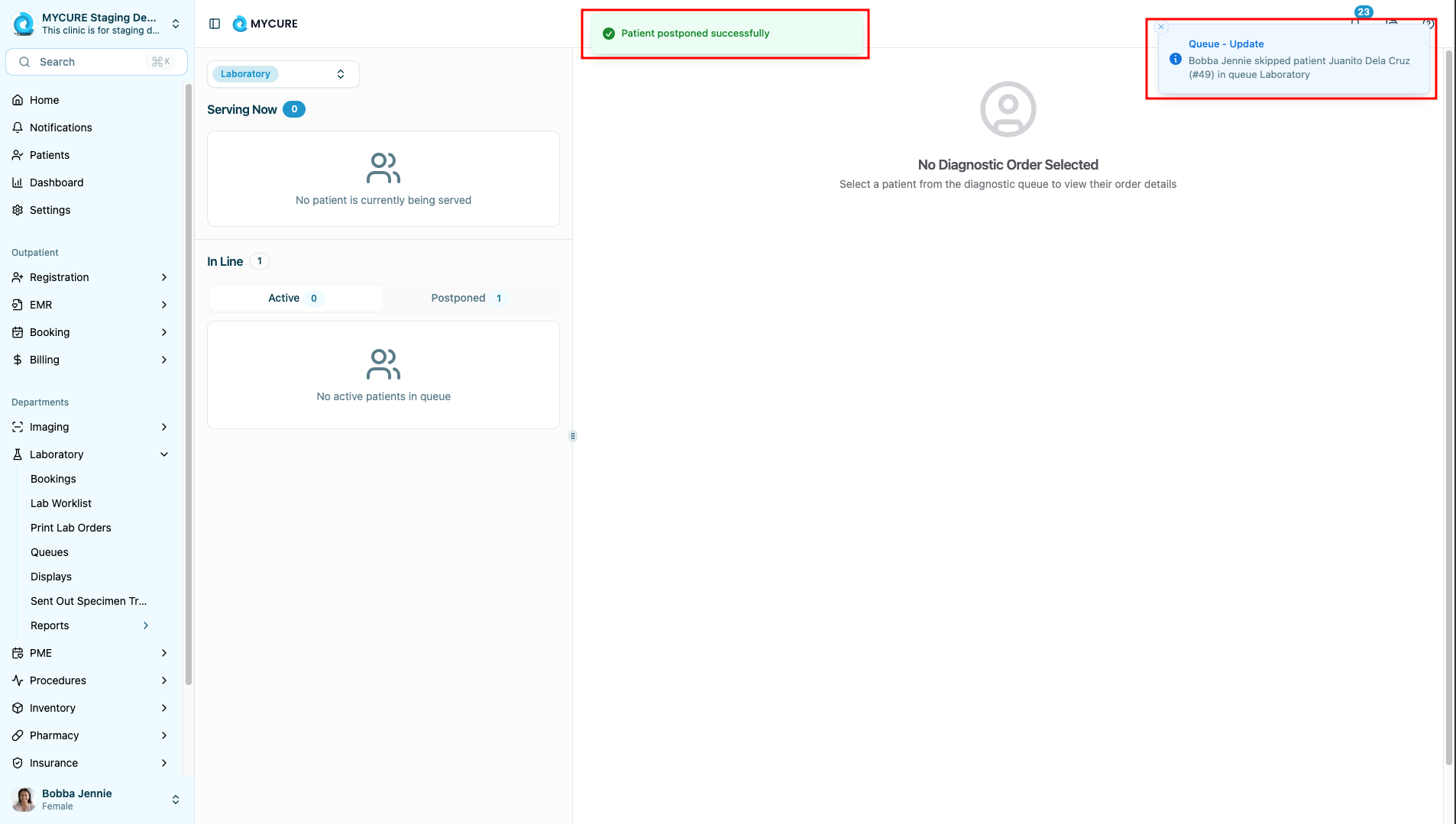
After entering a reason, click the "Submit" button to confirm the postponement. The system will process your request and remove the patient from the active queue.
Tips and Common Issues
Tip:
Adding a clear reason for postponement helps with record-keeping and can be useful if the patient or other staff members have questions about the schedule change.
Note:
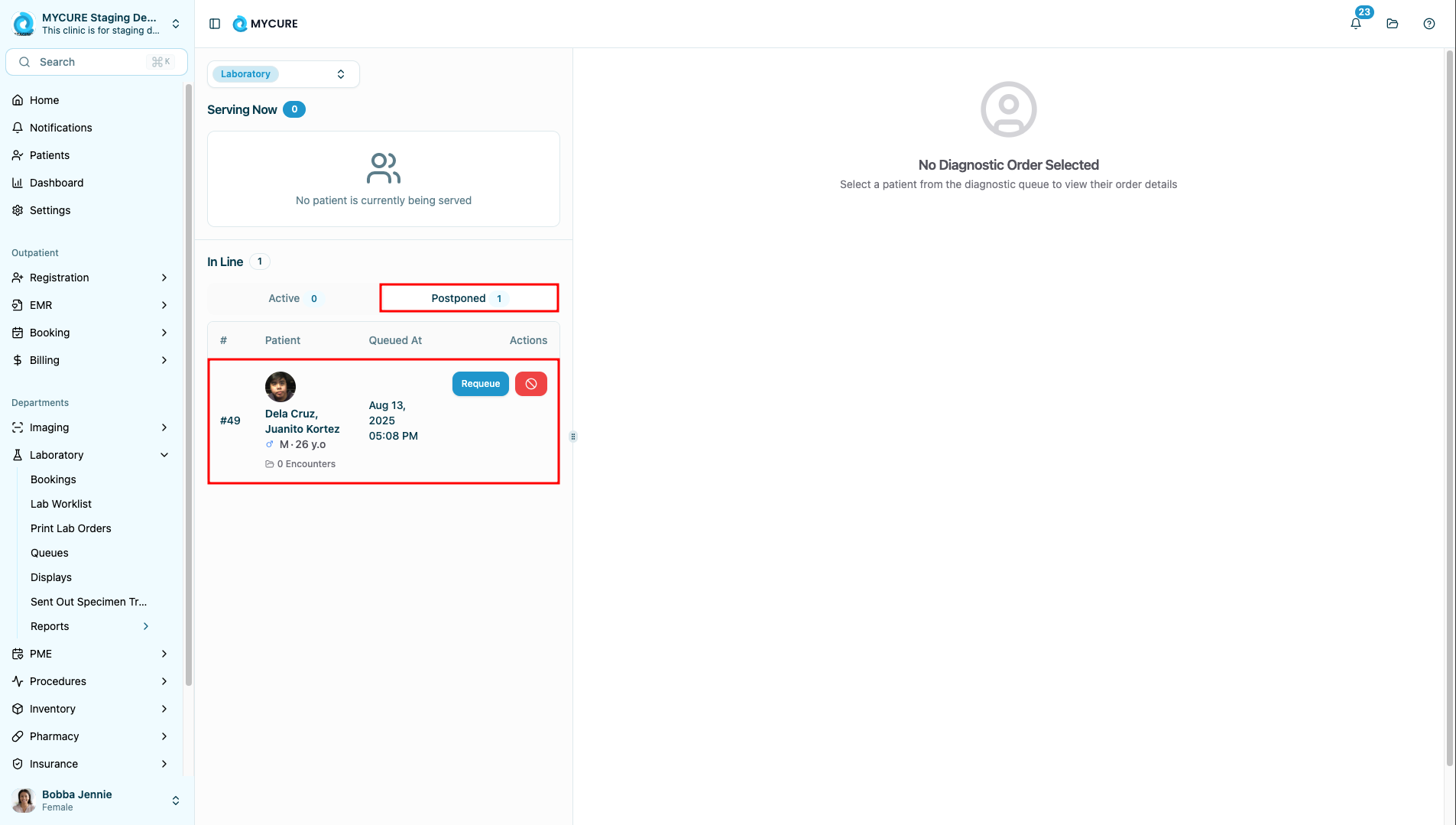
Postponed patients will not appear in the active queue, but their information is retained in the system. You can still access their records through patient search.
Warning:
Once you postpone a patient, they will need to be re-added to the queue when they return. There is no automatic rescheduling, so be sure to make a note of when the patient should return.
Troubleshooting
Postpone option is grayed out - Verify you have the proper permissions for laboratory queue management. Contact your system administrator if you believe this is an error.
Error message after clicking submit - Try refreshing the page and repeating the process. If the error persists, take a screenshot of the error message and contact support@mycure.md.
Patient still appears in queue after postponement - Refresh your browser page. If the patient still appears, try logging out and back in to reset your session cache.