
How To Set Up An Imaging Queue Display
5 min read
This tutorial will guide you through the process of setting up and launching a kiosk display for monitoring imaging queues in MYCURE v10. The Imaging Queue Display feature allows radiology departments to track patient flow and manage workload in real-time through a dedicated display screen.
What You'll Learn
How to access the Imaging Display configuration settings
How to select and customize the display layout
How to choose which imaging queues to display
How to launch the kiosk view for public display
Before You Begin
You need a MYCURE v10 account with appropriate permissions to access imaging features
A computer or display monitor where the kiosk will be shown
Modern web browser (Chrome, Firefox, or Safari recommended)
Steps
1. Navigate to Imaging Displays
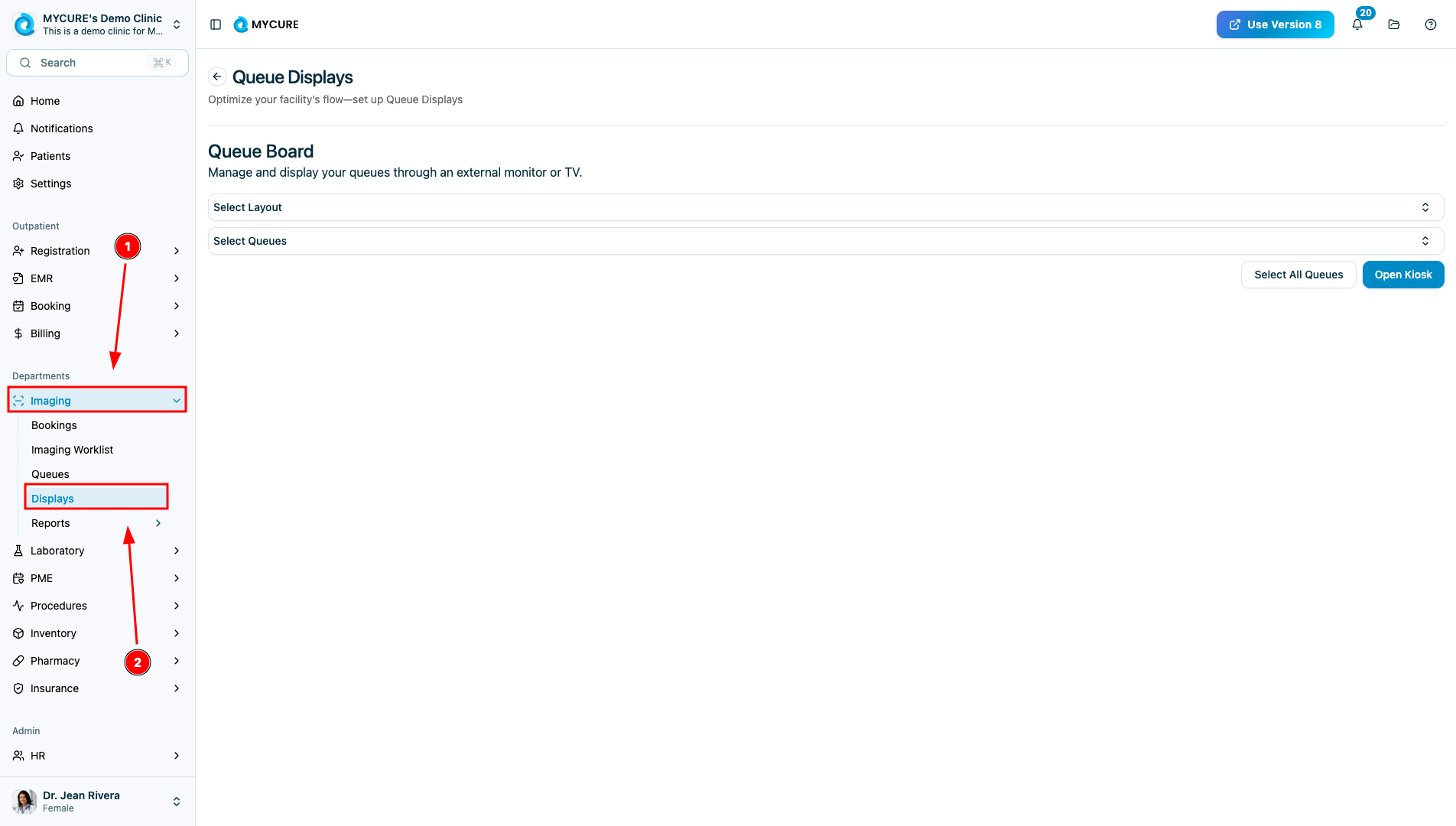
From your MYCURE dashboard, locate and click on the "Imaging" option in the main navigation bar at the top of the screen. This will open a dropdown menu with various imaging-related options. In the Imaging dropdown menu, click on the "Displays" option. This will take you to the display configuration page where you can set up your queue boards and displays.
2. Configure Queue Board Layout
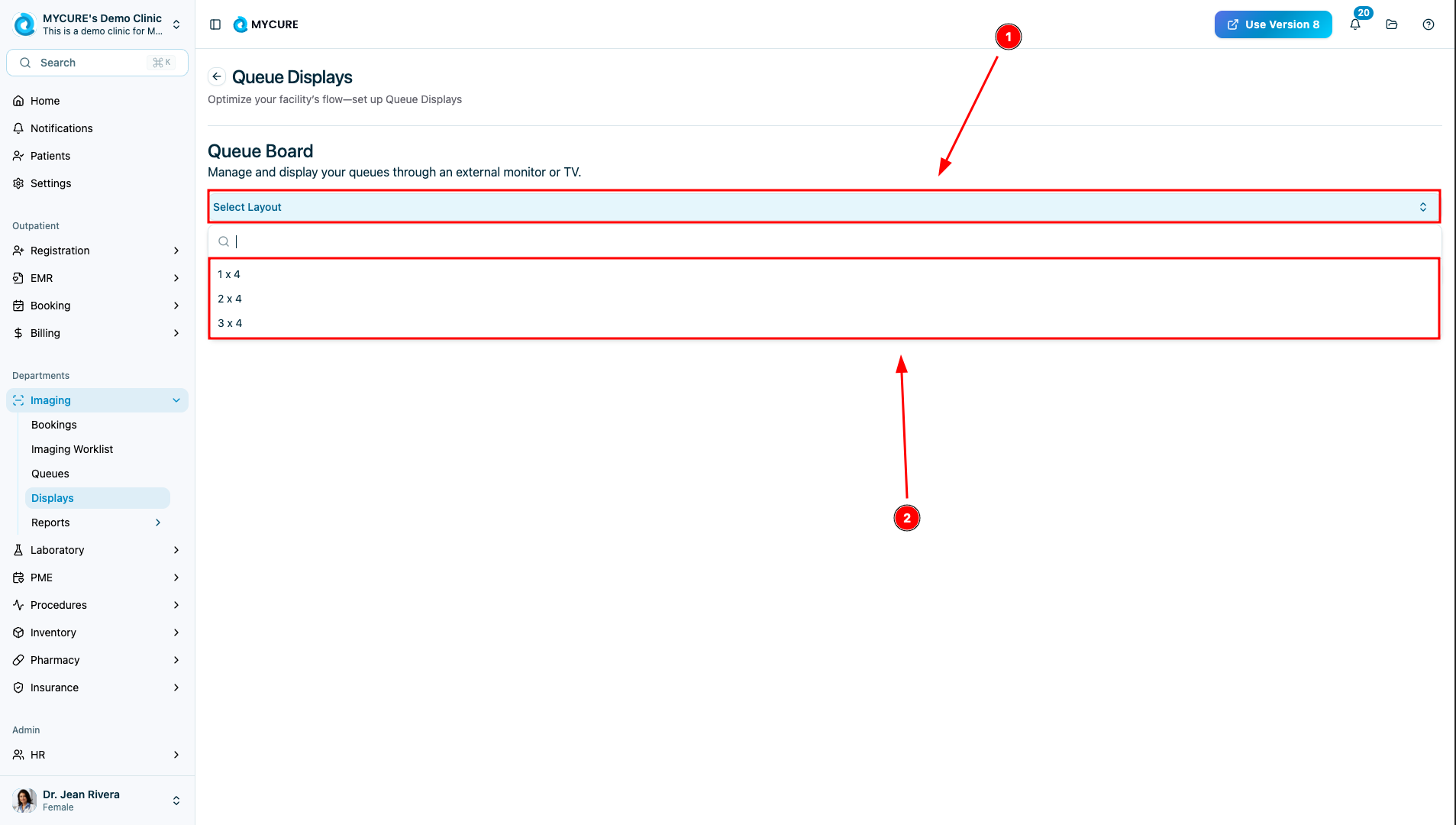
In the Queue Board section of the displays page, locate the layout dropdown menu. Click on it to see the available layout options (such as 1x1, 2x2, 3x3, etc.). Select the layout that best suits your display needs based on how many queues you want to show simultaneously.
3. Select Imaging Queues
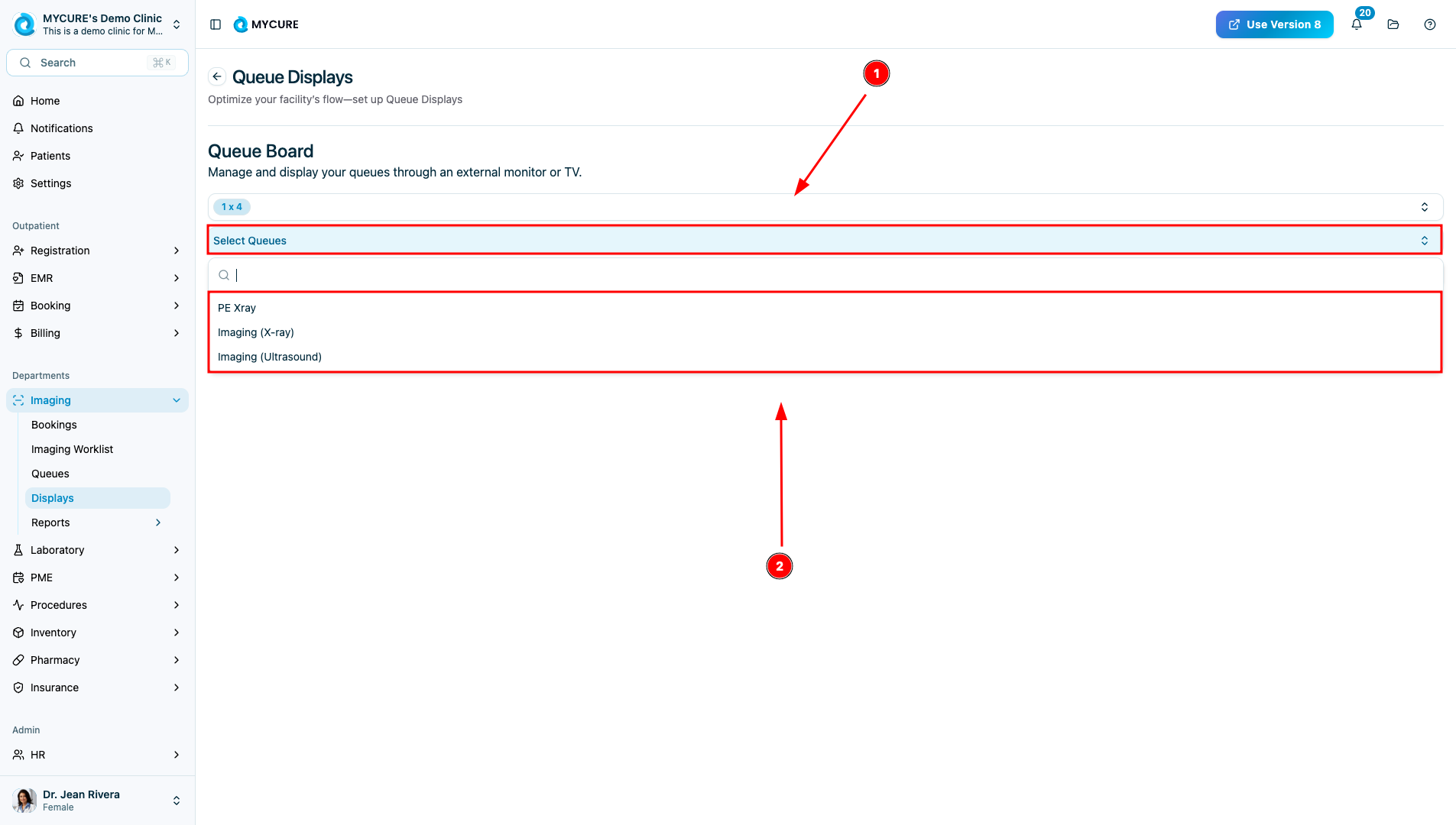
After selecting a layout, you'll see a list of available imaging queues. Click on the queues you want to display in your kiosk view. You can select individual queues one at a time or use the "Select All Queues" button to quickly select all available queues.
4. Launch the Kiosk Display
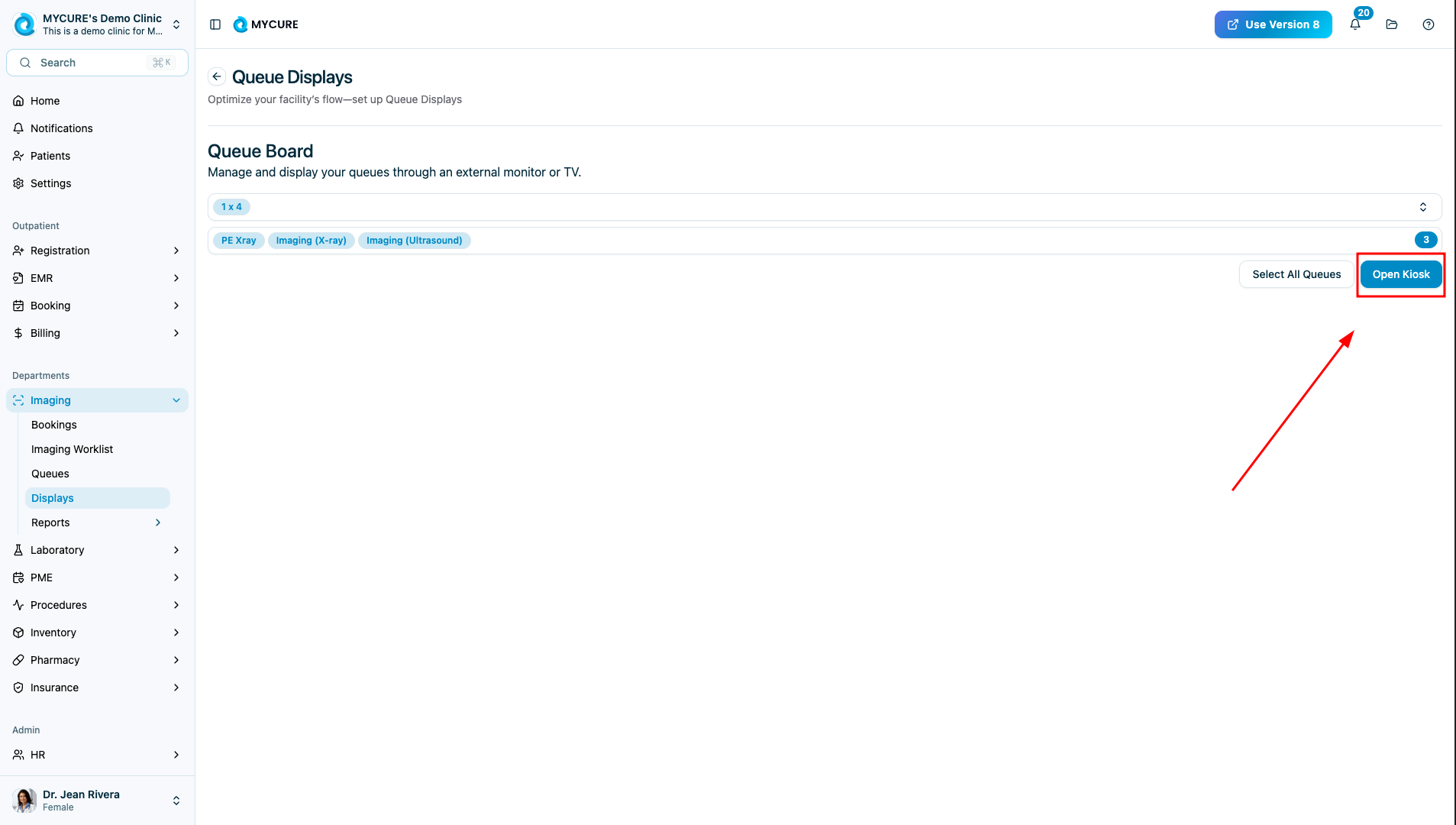
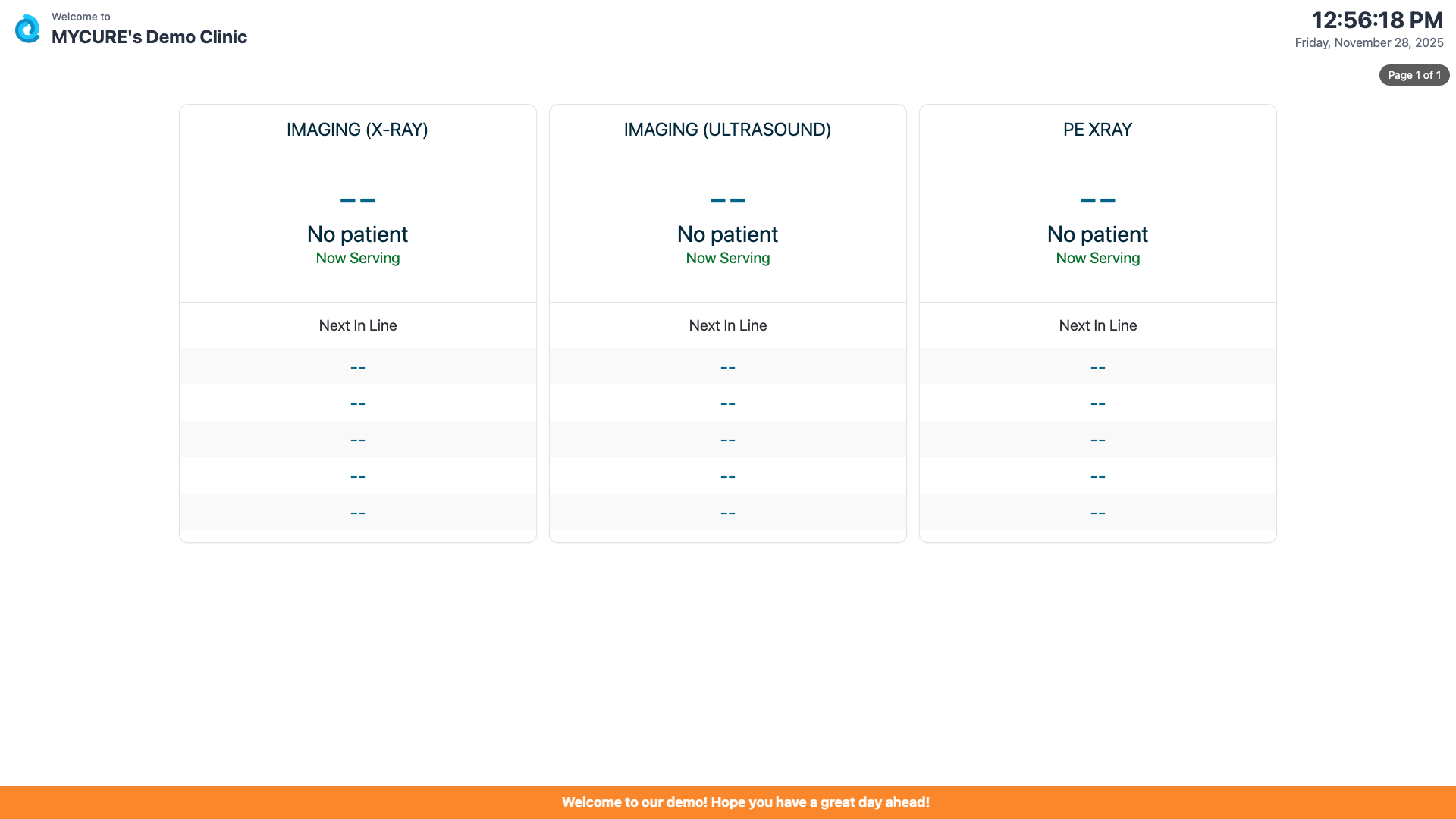
Once you've configured your layout and selected the desired queues, click the "Open Kiosk" button. This will open a new browser window or tab with the kiosk view displaying the selected queues in your chosen layout.
Tips and Common Issues
Tip:
For optimal display, consider setting the kiosk browser to fullscreen mode by pressing F11 (on most browsers) after the kiosk view loads.
Note:
The kiosk view automatically refreshes to show the most current queue information. There's no need to manually refresh the page.
Warning:
Closing the original MYCURE window will not affect the kiosk display. However, logging out of MYCURE in another tab might cause the kiosk to require re-authentication after a certain period.
Troubleshooting
Kiosk not displaying all selected queues - Ensure you've selected an appropriate layout for the number of queues you want to display. For example, a 2x2 layout can only show 4 queues maximum.
Queue information not updating - Check your internet connection. If the issue persists, try closing and reopening the kiosk view.
Kiosk screen goes blank after some time - Adjust your computer's power settings to prevent the display from going to sleep or the screensaver from activating.