
How To Access The Imaging Worklist And Print Claim Stubs
3 min read
This tutorial will guide you through the process of accessing the Imaging Worklist in MYCURE and printing claim stubs for selected imaging orders. This functionality is essential for healthcare providers who need to manage imaging requests and provide patients with documentation for insurance claims.
What You'll Learn
How to navigate to the Imaging Worklist
How to view and select imaging orders
How to print claim stubs for selected orders
Before You Begin
You must have a MYCURE v10 account with appropriate permissions
You need to be logged into the MYCURE system
Your workstation should be connected to a printer or have PDF printing capabilities
Steps
1. Access the Imaging Module
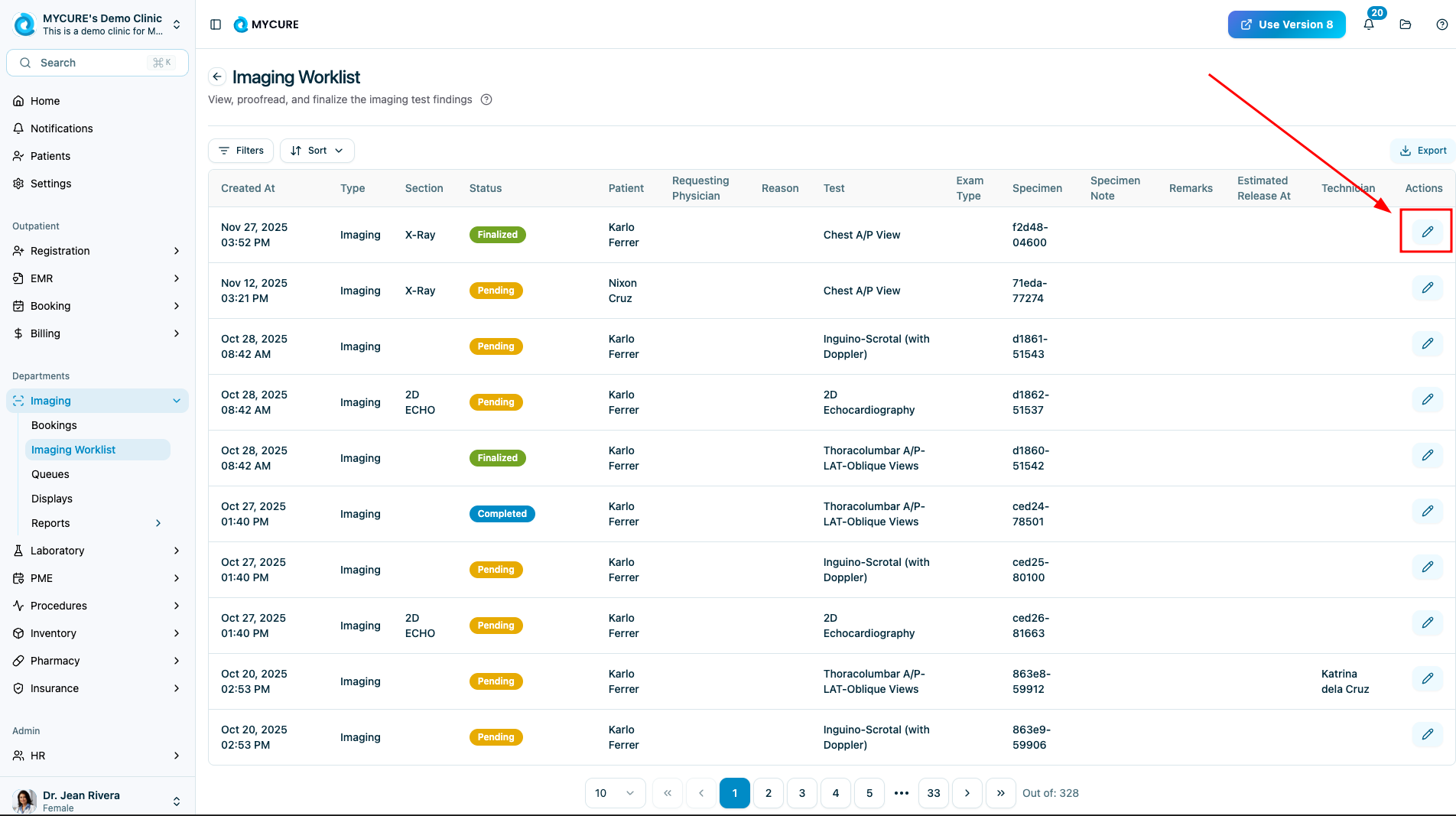
Navigate to the top navigation bar of the MYCURE interface and click on the "Imaging" menu option. This will display a dropdown menu with various imaging-related functions. From the dropdown menu, click on "Imaging worklist". The system will load the Imaging Worklist screen, displaying all current imaging orders that require processing.

2. Select an Order Record
Browse through the worklist and click on the specific imaging order record you want to process. The selected record will be highlighted, indicating it is active and ready for action.
3. Access Print Options
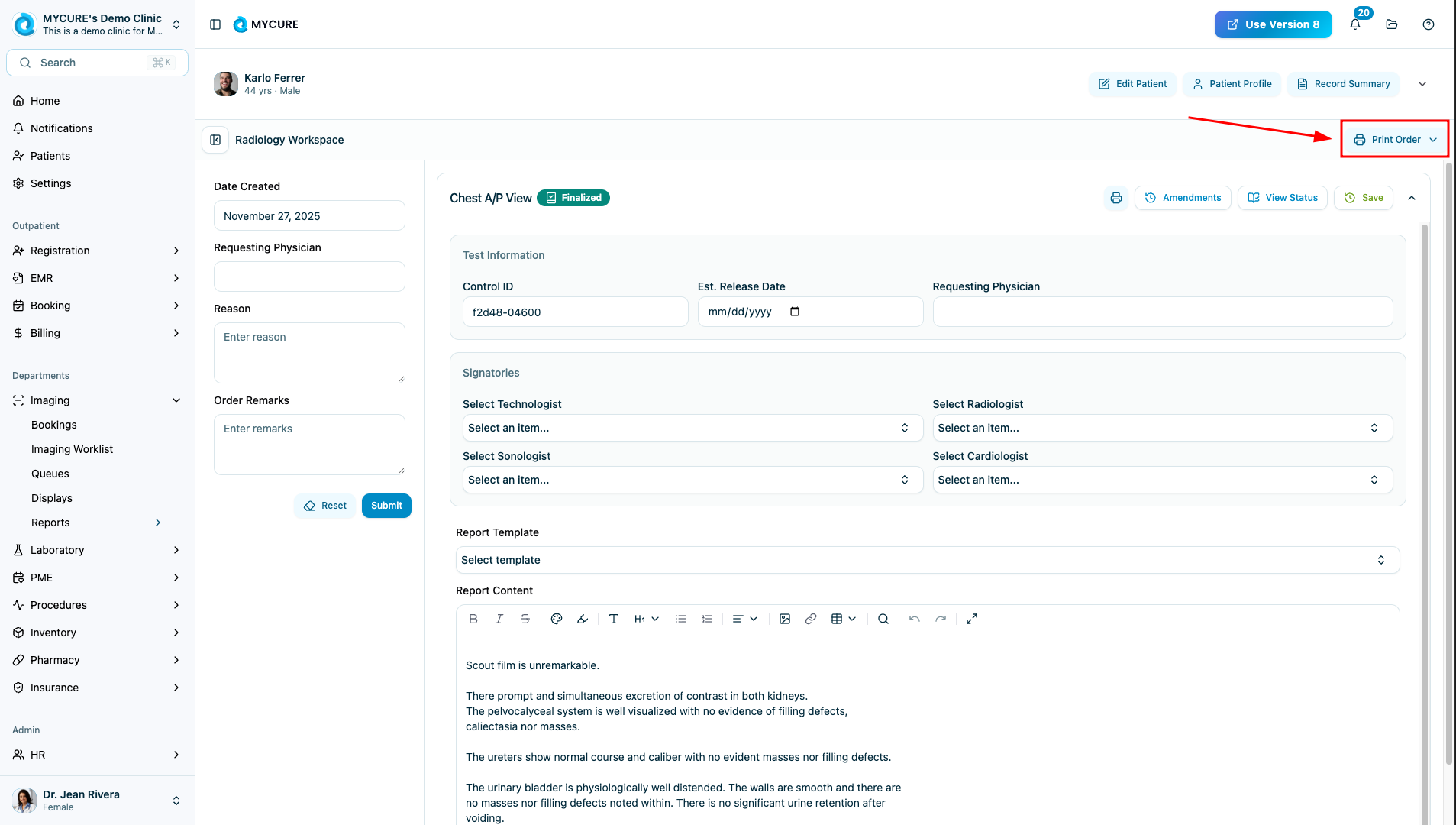
With the desired record selected, locate and click the "Print Order" button. This will display printing options for the selected imaging order.
4. Print the Claim Stub
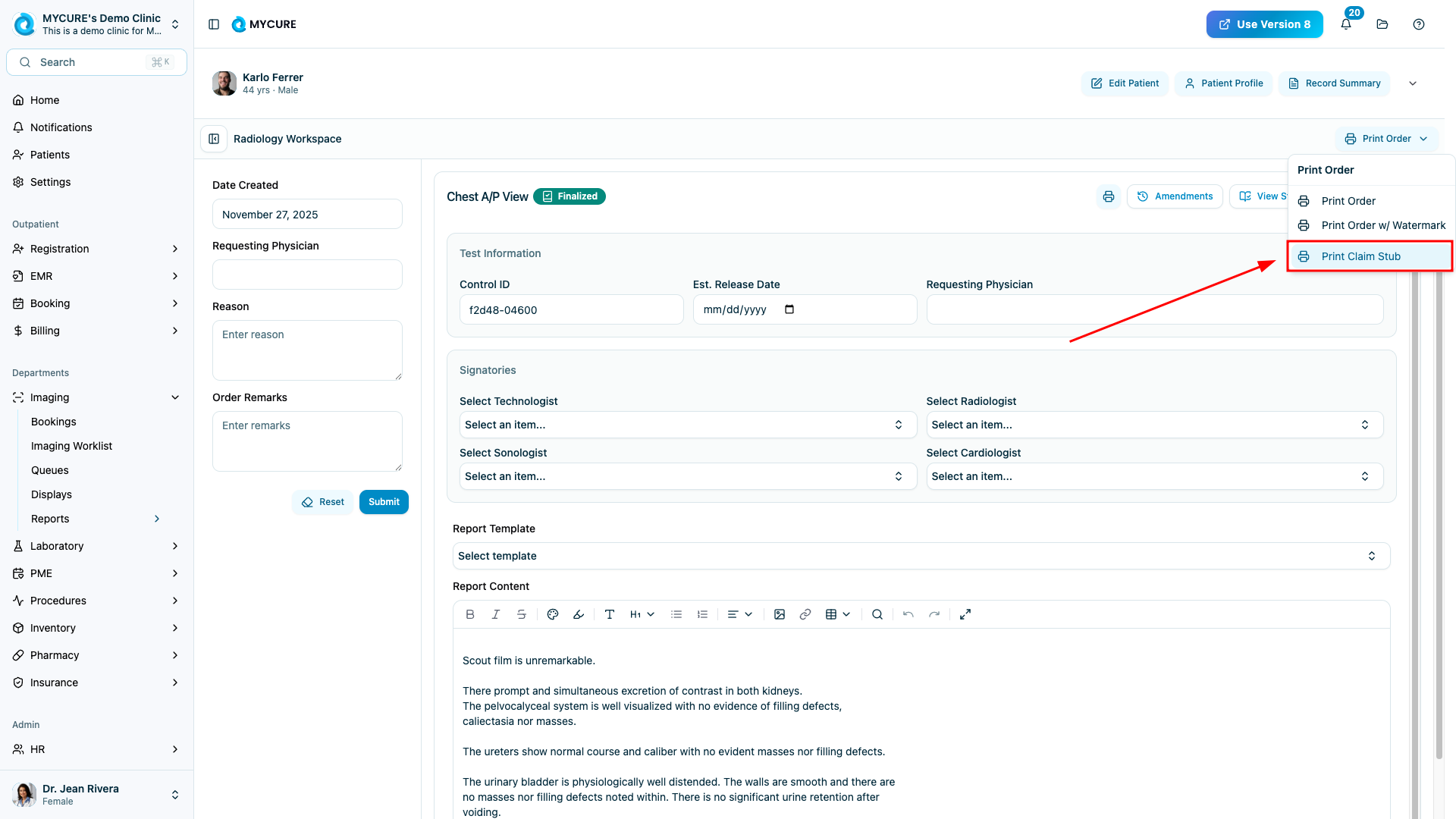
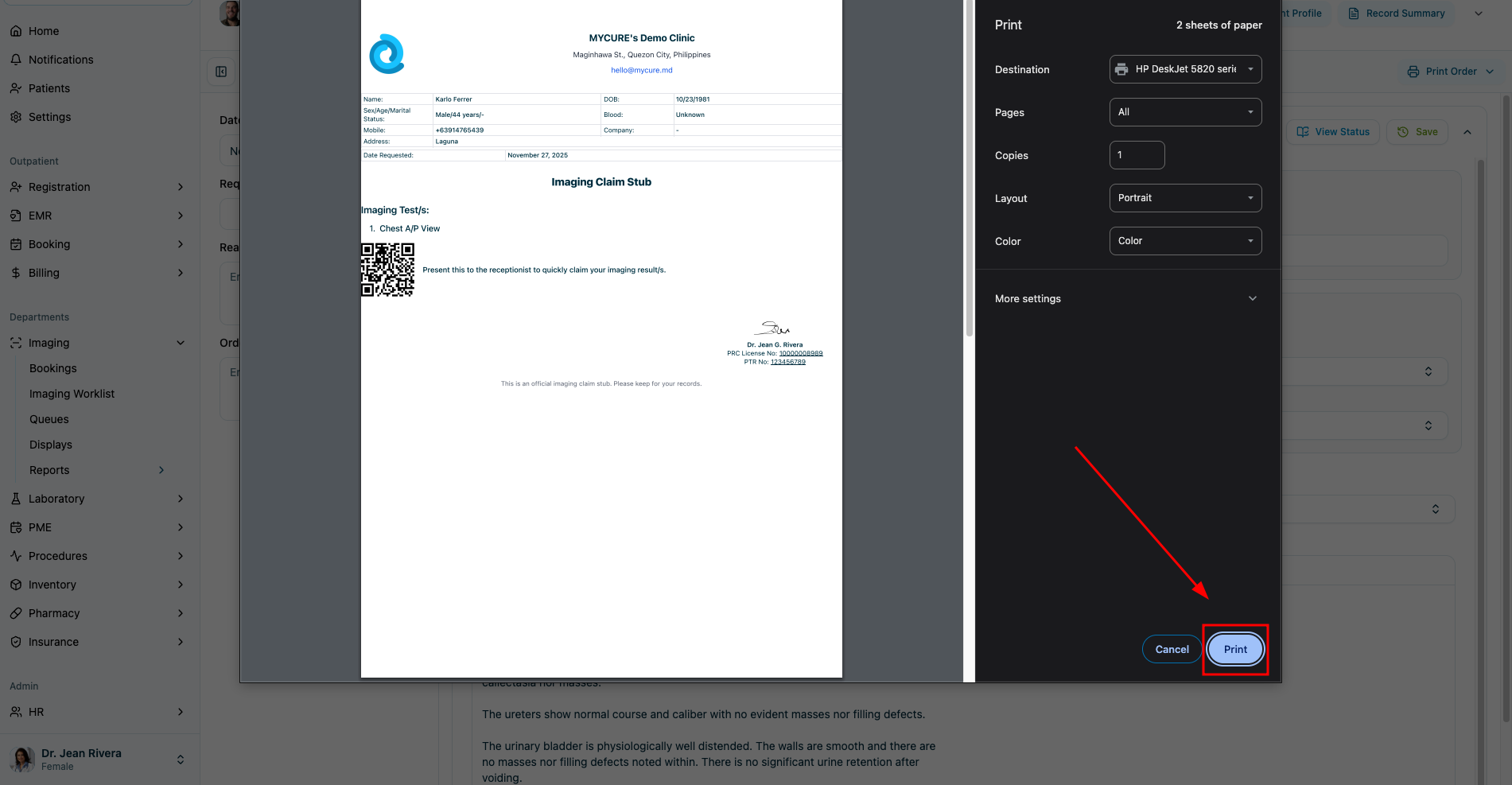
From the print options displayed, click "Print Claim Stub". The system will generate a claim stub document that can be printed or saved as a PDF.
Tips and Common Issues
Tip:
You can use the search or filter functions in the Imaging Worklist to quickly locate specific patient orders rather than scrolling through the entire list.
Note:
Claim stubs contain important information required by insurance providers. Make sure all details are correct before printing and providing to patients.
Warning:
Ensure patient confidentiality by collecting printed claim stubs promptly from shared printers and disposing of misprinted documents securely.
Troubleshooting
Imaging module doesn't appear in the navigation bar - Verify that you have the proper user permissions. Contact your system administrator if needed.
Print dialog doesn't appear - Check that your browser allows pop-ups from the MYCURE site. You may need to adjust your browser settings.
Printed stub appears incomplete - Ensure your printer has adequate toner/ink and is properly configured for the paper size being used.