
How To Print Imaging Orders From The Worklist
3 min read
This tutorial guides you through the process of accessing the Imaging Worklist in MYCURE v10 and printing imaging orders. You'll learn how to navigate to the worklist, select a finalized record, and print an order with or without a watermark.
What You'll Learn
How to navigate to the Imaging Worklist
How to select a finalized imaging record
How to print an imaging order with or without a watermark
Before You Begin
You need to have a MYCURE v10 account with appropriate permissions
You need to have at least one finalized imaging order in the system
You should have access to a printer connected to your device
Steps
1. Navigate to the Imaging Menu
Open MYCURE and locate the navigation bar at the top of the screen. Click on "Imaging" to access the imaging-related features. From the dropdown menu that appears, click on "Imaging worklist" to open the list of imaging records.

2. Select a Finalized Record
Browse through the worklist and click on a finalized record that you want to print. Make sure the record has been properly finalized before proceeding.

3. Print the Order
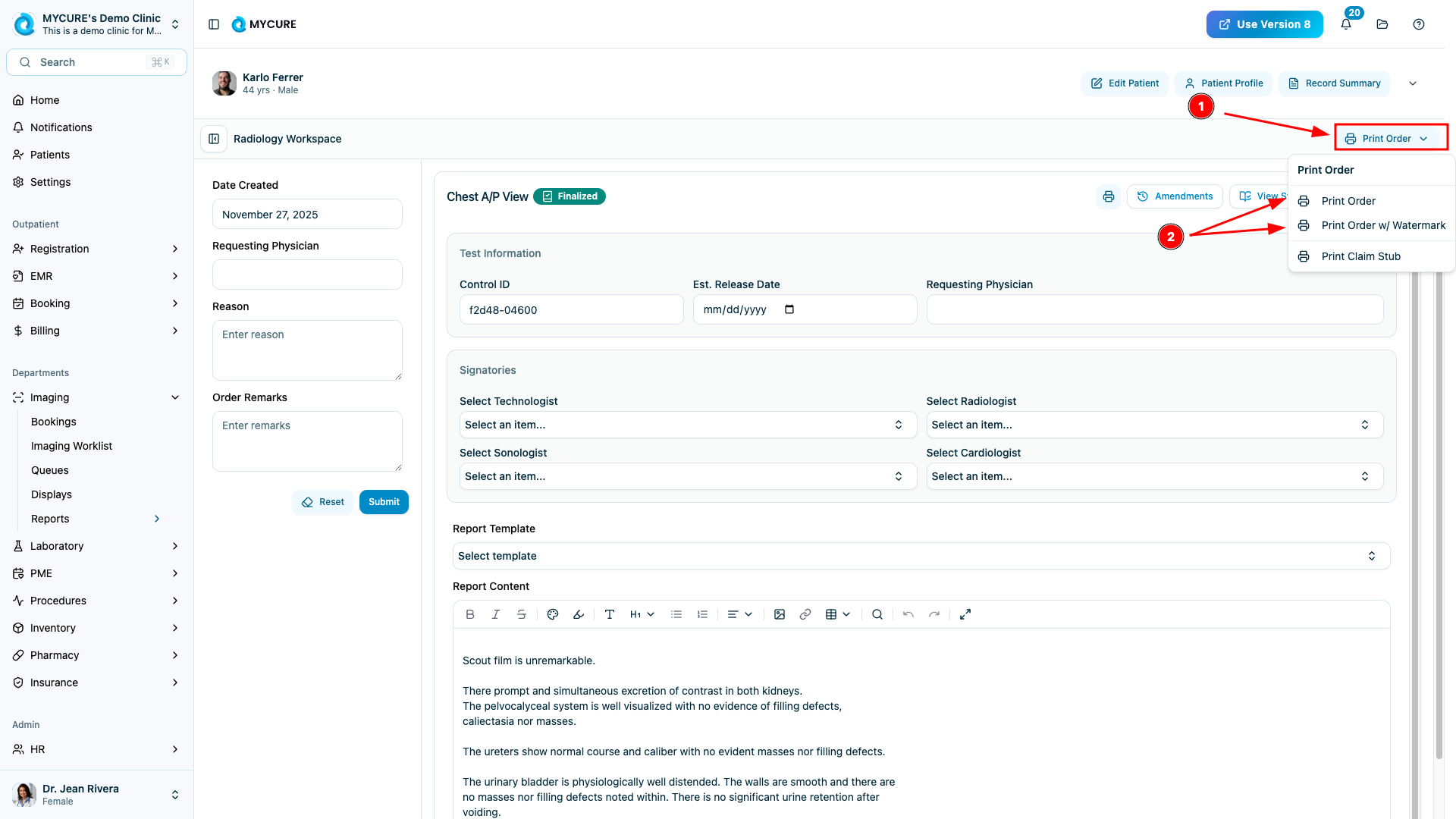
Click the "Print Order" button. A dropdown or dialog will appear with two options:
"Print Order" - for standard printing
"Print Order w/ Watermark" - for printing with a watermark
Select the appropriate option based on your needs.
4. Complete the Printing Process
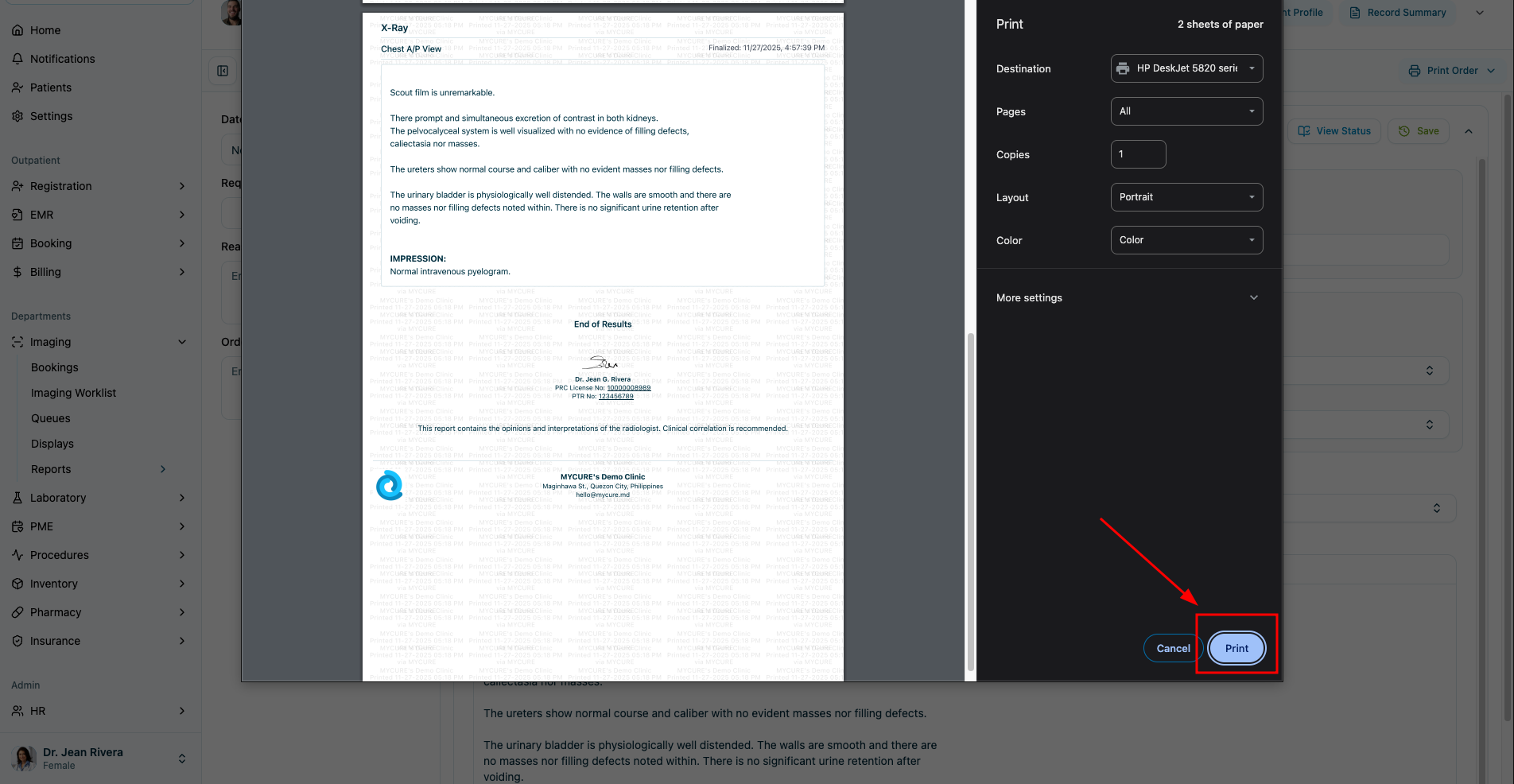
After selecting your preferred print option, your system's print dialog will open. Configure your print settings as needed and click "Print" to send the document to your printer.
Tips and Common Issues
Tip:
Watermarked versions are useful for draft copies or for records that need to be marked as copies. Use the standard version for official documentation.
Note:
Only finalized records can be printed. If you don't see the Print Order button, check if the record has been properly finalized.
Warning:
Be mindful of patient privacy when printing medical records. Always collect printed documents promptly and store or dispose of them securely.
Troubleshooting
Print button is disabled - Verify that the record is finalized and that you have the appropriate permissions to print.
Printer not responding - Check your printer connection and status. Make sure it's turned on and has paper.
Watermark not appearing - If the watermark doesn't appear on the printed document, check your printer settings. Some settings might reduce the visibility of watermarks.